How to Add Photos to Your Google Business Profile
Business Profile with captivating photos using our step-by-step guide. Follow our expert tips and tricks to make your profile stand out and attract more customers. Read the comprehensive tutorial now, published by Synup.com.
As a local business, you need to make sure that potential customers can easily find and learn more about your brand online. By creating and optimizing a Google Business Profile (formerly Google My Business profile), you can share important information about your business with people who are searching for products and services like yours on Google. When customers are looking at your Google Business Profile, it’s crucial to make a strong impact and give consumers an idea of your business. Adding photos to your Google Business Profile makes your profile more appealing and informative, giving consumers a first-hand look at your storefront, your products and services, and your distinct brand identity.
Here's how to add photos to your Google Business Profile:
1. Sign in to your Google Business Profile account
2. Go to the "Photos" tab
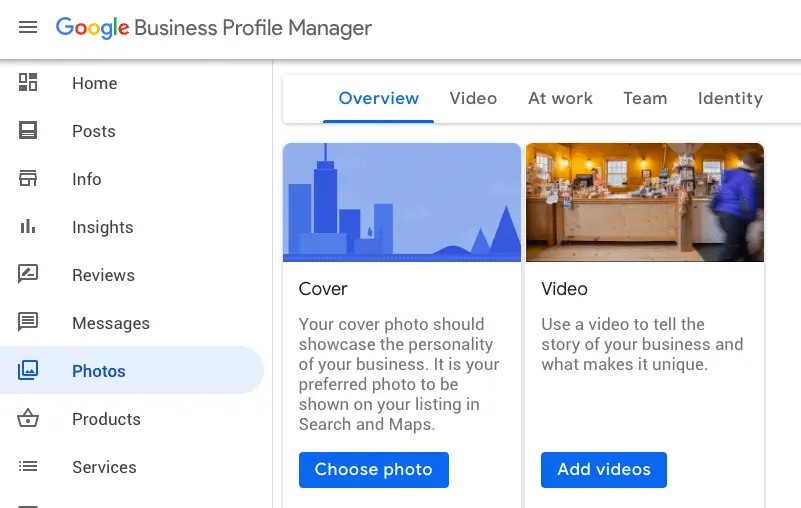
Once you're signed in to your Google Business Profile account, click Click on the “Photos” tab on the navigation menu at the top of your dashboard. This is where you can add and manage photos for your Google Business Profile.
3. Choose the type of photo you want to add
Google allows you to add several different types of photos to your Google Business Profile, including:
- Profile photo: This photo appears next to your business name on your Google Business Profile. It should be a high-quality photo that represents your business well.
Tip: most businesses use their logo as their profile photo on their Google Business Profile - Cover photo: This is the large photo that appears at the top of your Google Business Profile. It should be an eye-catching photo that gives people a sense of what your business is all about.
Tip: for your cover photo, choose something that gives customers a sense of your products and services - Additional photos: You can also add additional photos to your Google Business Profile, such as photos of your products, your team, or your physical space. These photos can help potential customers get a better sense of what it's like to do business with you, so make sure these are also high quality and represent your brand!
Tip: if you add additional photos to your Google Business Profile, ensure that they
Choose the type of photo you want to add and click on the "Add photos" button.
4. Upload your photo
Google will prompt you to upload your photo. Make sure that your photo meets Google's guidelines for photos on Google Business Profiles. For starters, your photo should be high-quality and relevant to your business! You can take a look at Google’s full list of guidelines here.
5. When applicable, add a caption to your photo
Describing photos can help customers get familiar with your business and get a sense of what you have to offer.
If you don’t add images to your Google Business Profile, prospective customers will only see user-added images. There’s nothing wrong with the photos that customers upload (like when they leave a Google review). However, using your own images ensures some level of control when constructing your online presence.
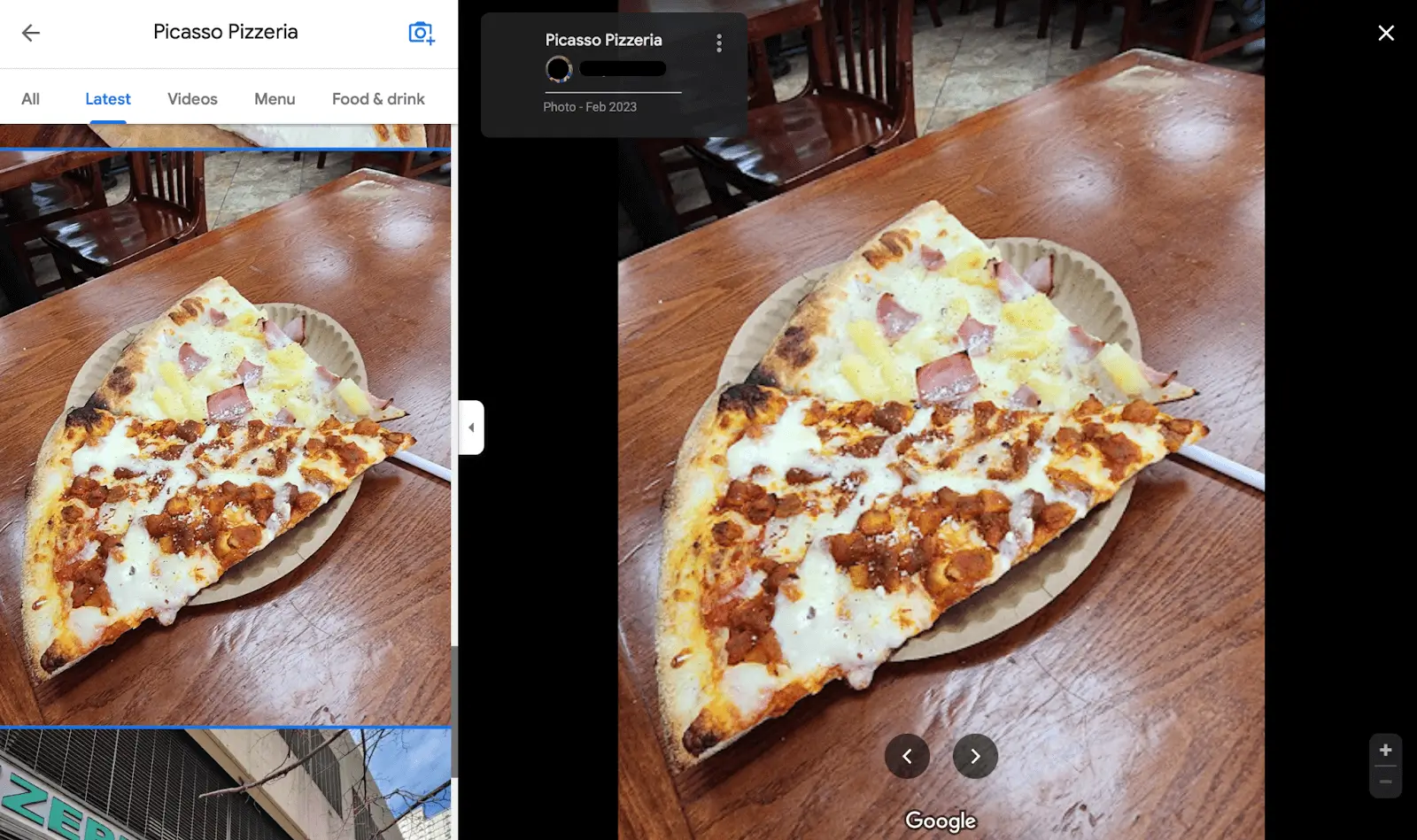
For example, take a look at the user-added image of pizza from a local restaurant. It looks good, but it’s unlikely to be used in promotional material for the restaurant. It is, after all, just a casual photo of the pizza.
Here’s an example of the images the pizza place uploaded to their Google Business Profile. The great angle and lighting help the pizza look more enticing, which is bound to get more customers in the door!
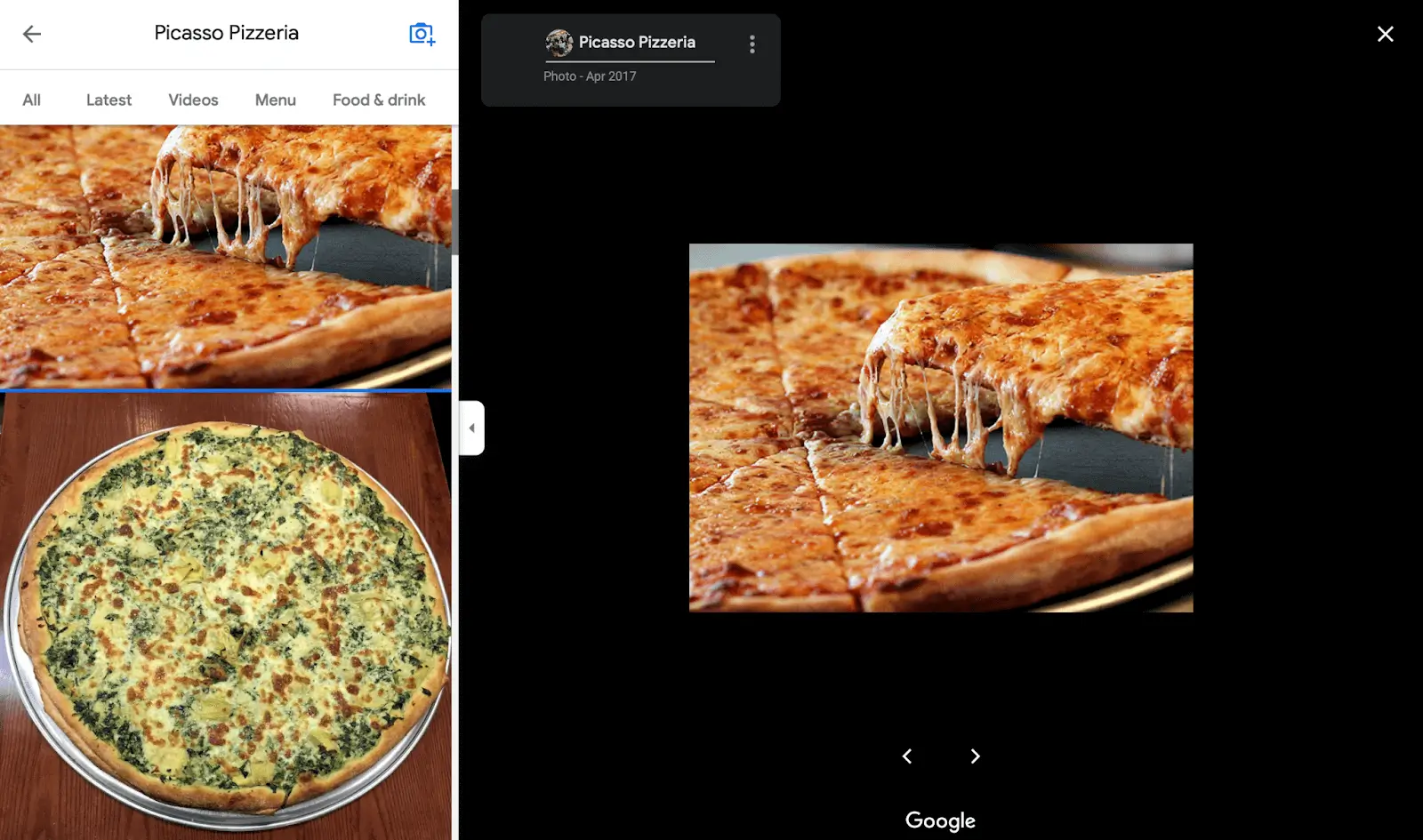
The bottom line is that by controlling the images on your Google Business Profile, you can help shape how consumers understand your business when they search for it online. Impressions are important, and pictures speak louder than words!
So go add images to your Google Business Profile and help customers understand your business.