How to create and setup Google search console on a website
Learn step-by-step instructions on how to create and setup Google Search Console on your website to monitor your website's search performance and improve visibility.
What is Google Search Console?
Google Search Console is an free tool for website owners to monitor and improve their website's organic visibility in Google search results. It helps to track website's performance, indexing, submit sitemaps, and fix any technical issues that may impact website's ranking.
Step-by-Step Guide on How to Setup Google Search Console?
- Go to the Google Search Console website (https://search.google.com/search-console).
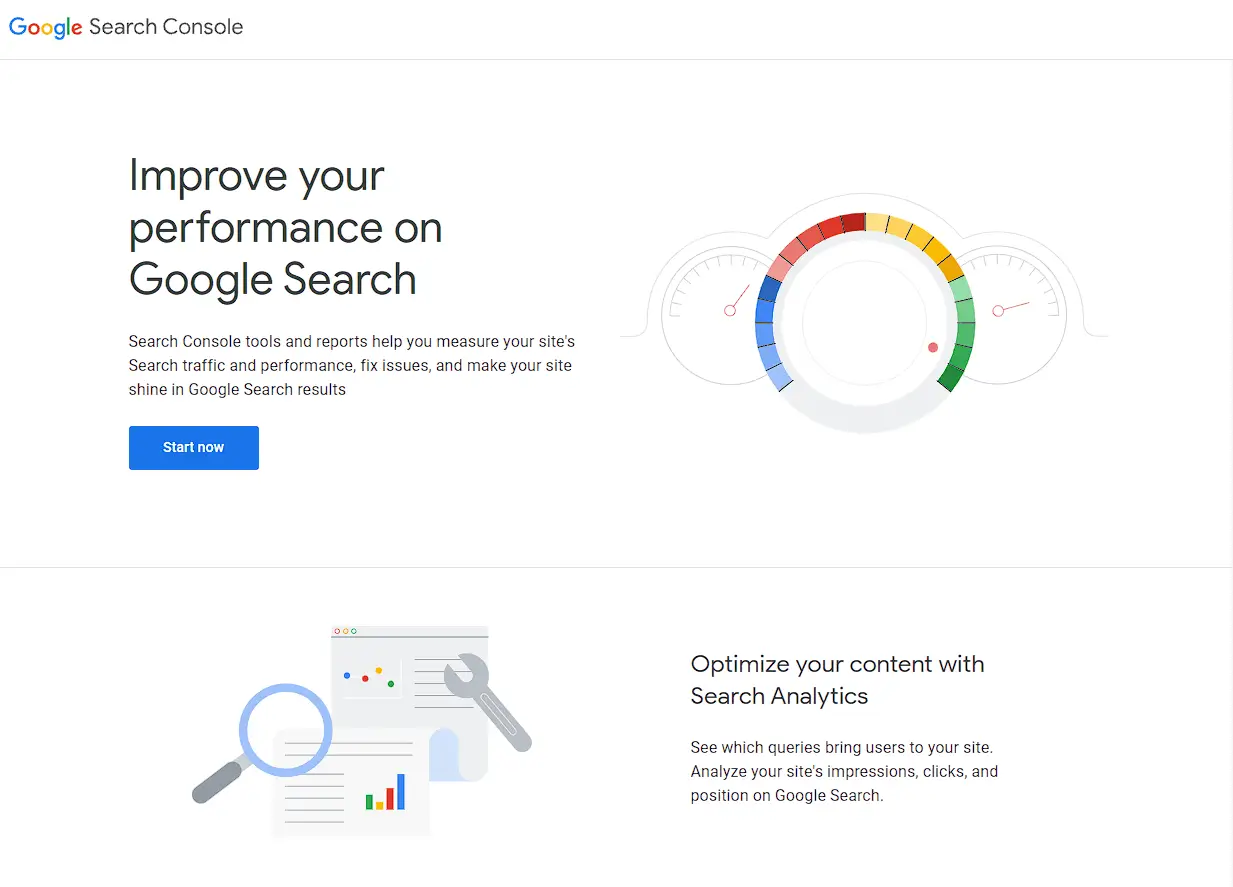
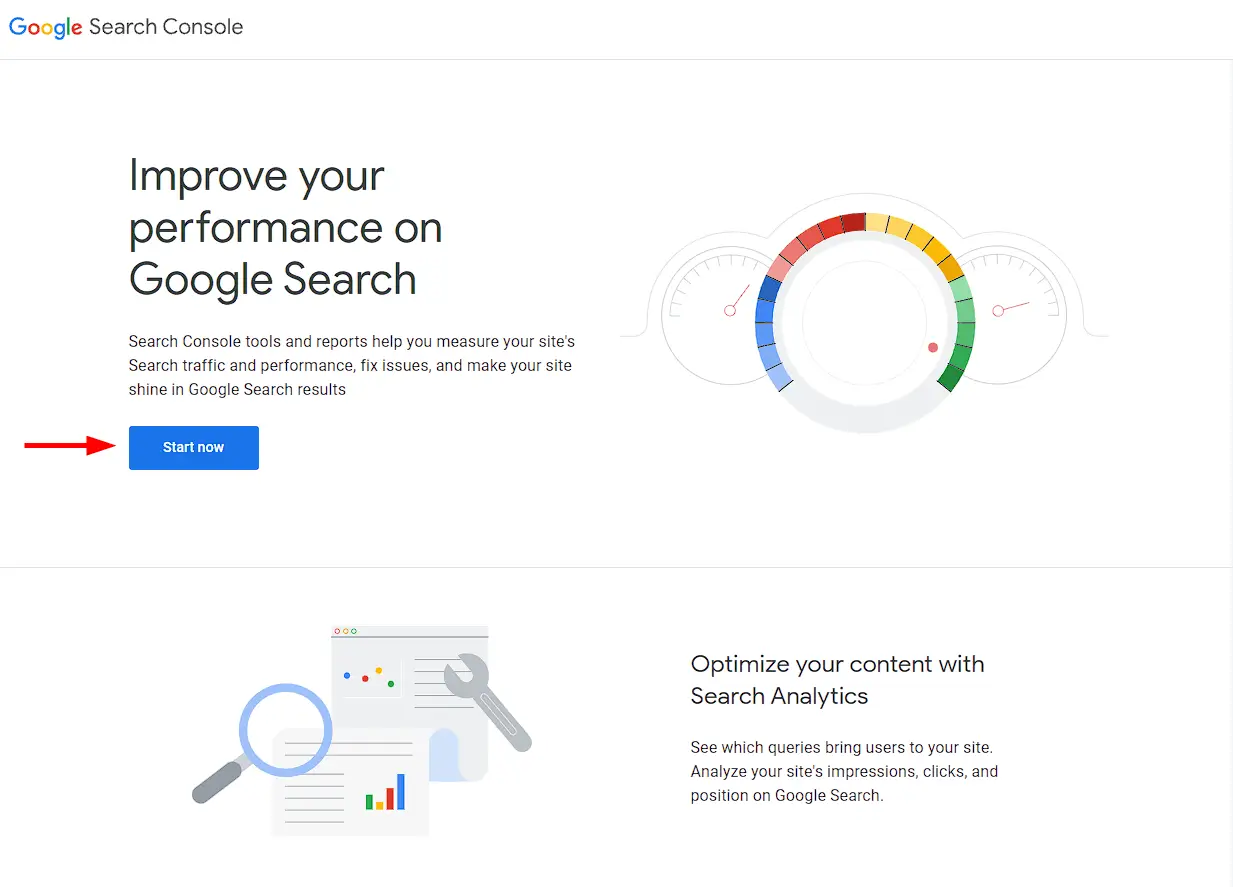
- Click the "Start Now" button.
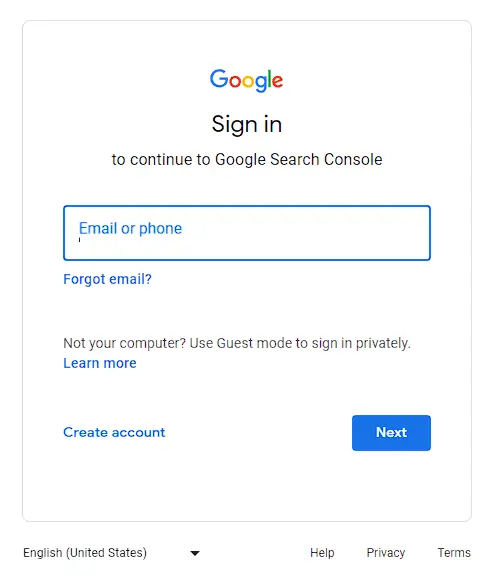
- Sign in to your Google account. If you don't have one, you can create a new account.
- Navigate to main menu, Click "Add a Property" and enter your website URL in the designated field
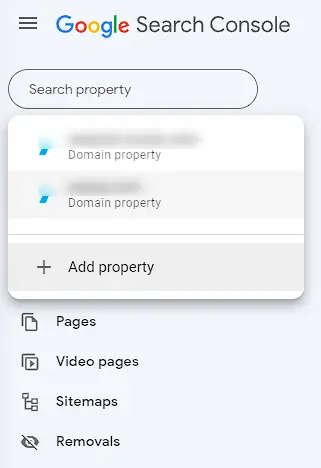
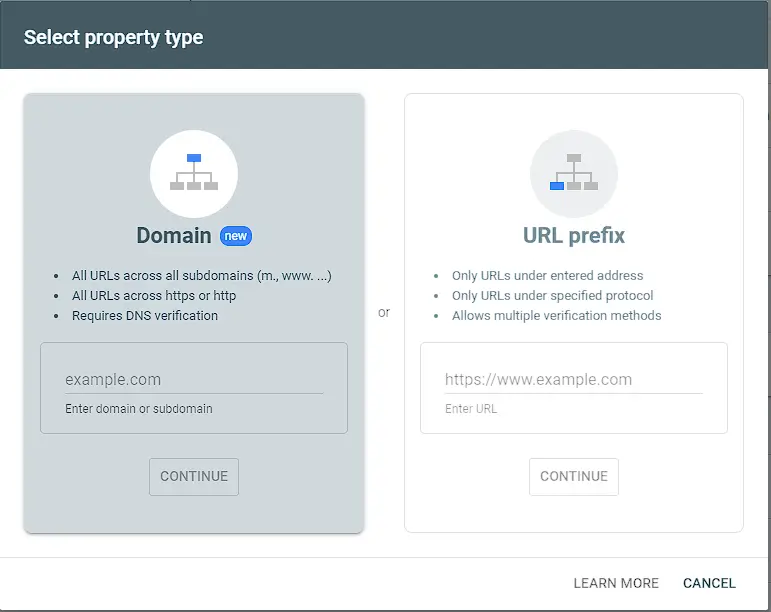
- Choose your property type - a complete website on a domain or a specific URL prefix to monitor.
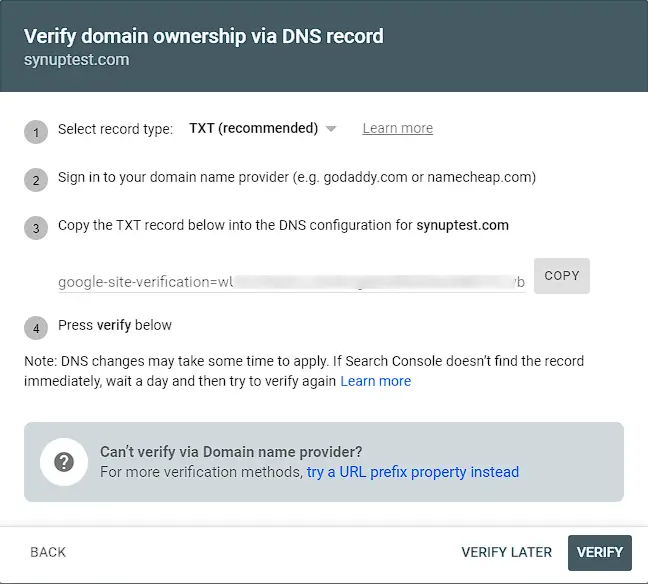
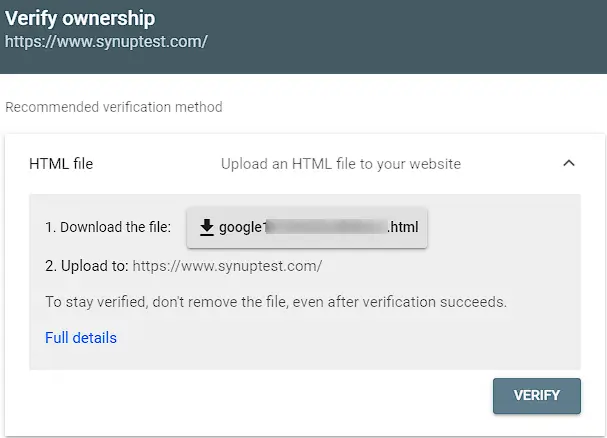
- Verify ownership of your website. This can be done through several methods, including adding a DNS record, uploading an HTML file, or linking to your Google Analytics account.
- Verify domain ownership via DNS record
- Verify domain ownership via HTML file
- Verify domain ownership via HTML Tag
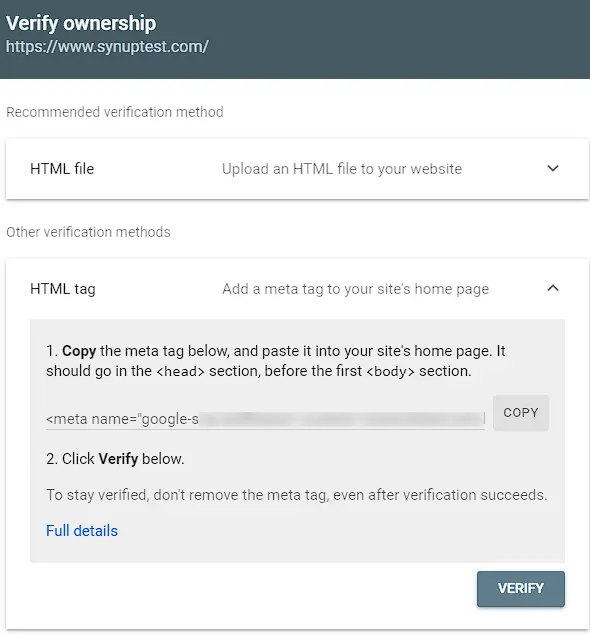
- Verify domain ownership via Google Analytics
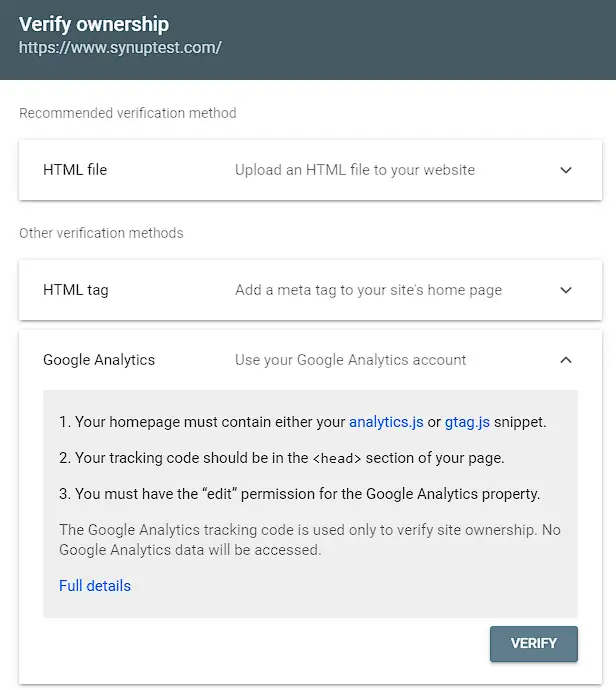
- Verify domain ownership via Google Tag Manager
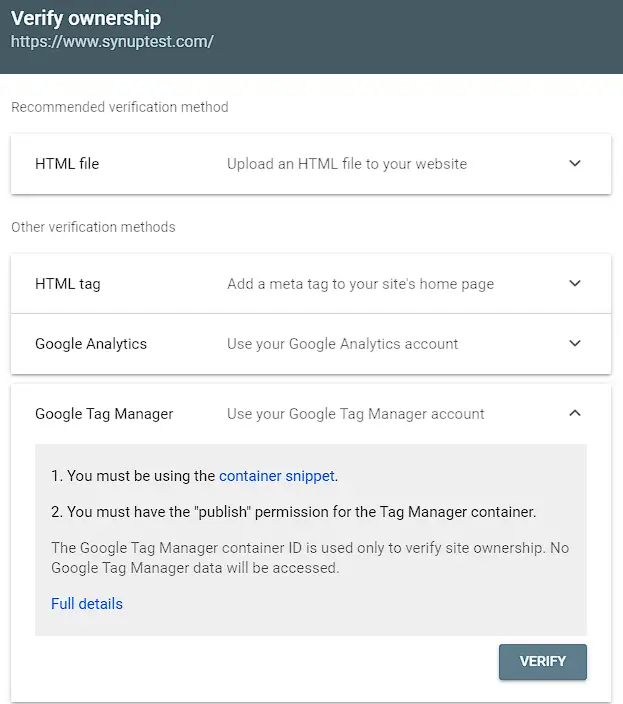
- After you've added the DNS or HTML code to your website, simply click the 'VERIFY' button in the same section to complete the verification process.
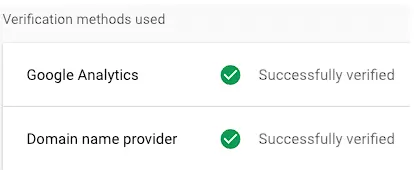
- Once you've verified ownership, you can start using the Google Search Console.
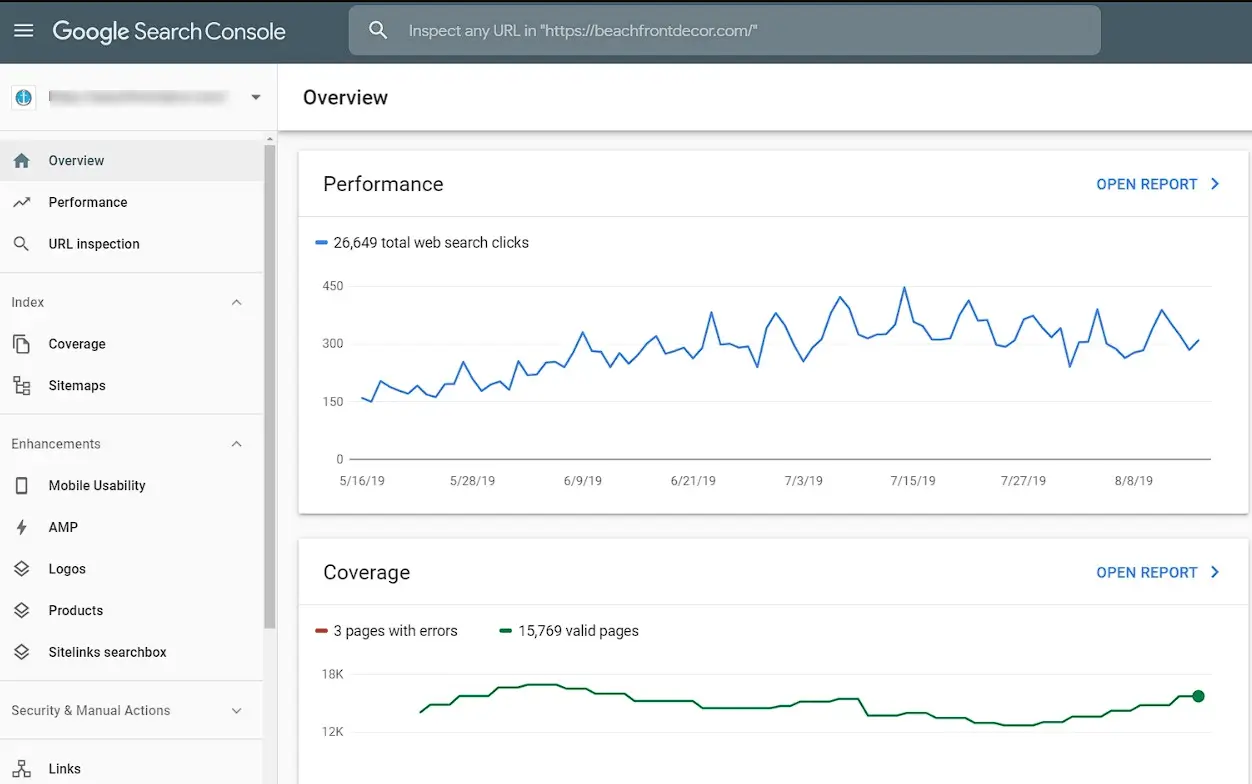
- From the Search Console dashboard, you can check your website's performance in Google search results, submit sitemaps, monitor any crawl errors, and much more.

- Regularly check your Search Console for any notifications or issues and take necessary actions to resolve them.