How to enable login alerts on facebook?
Learn how to enable login alerts on Facebook with Synup's step-by-step guide. Protect your account and stay informed with notifications when someone logs into your account.
How to enable login alerts on facebook?
Enabling login alerts on Facebook is crucial for businesses as it provides an added layer of security to protect their online presence and sensitive information. These alerts notify users whenever an unrecognized device or location attempts to access their Facebook account, allowing them to respond quickly to potential security threats.
Step 1: Log in to your Facebook account using your email and password.
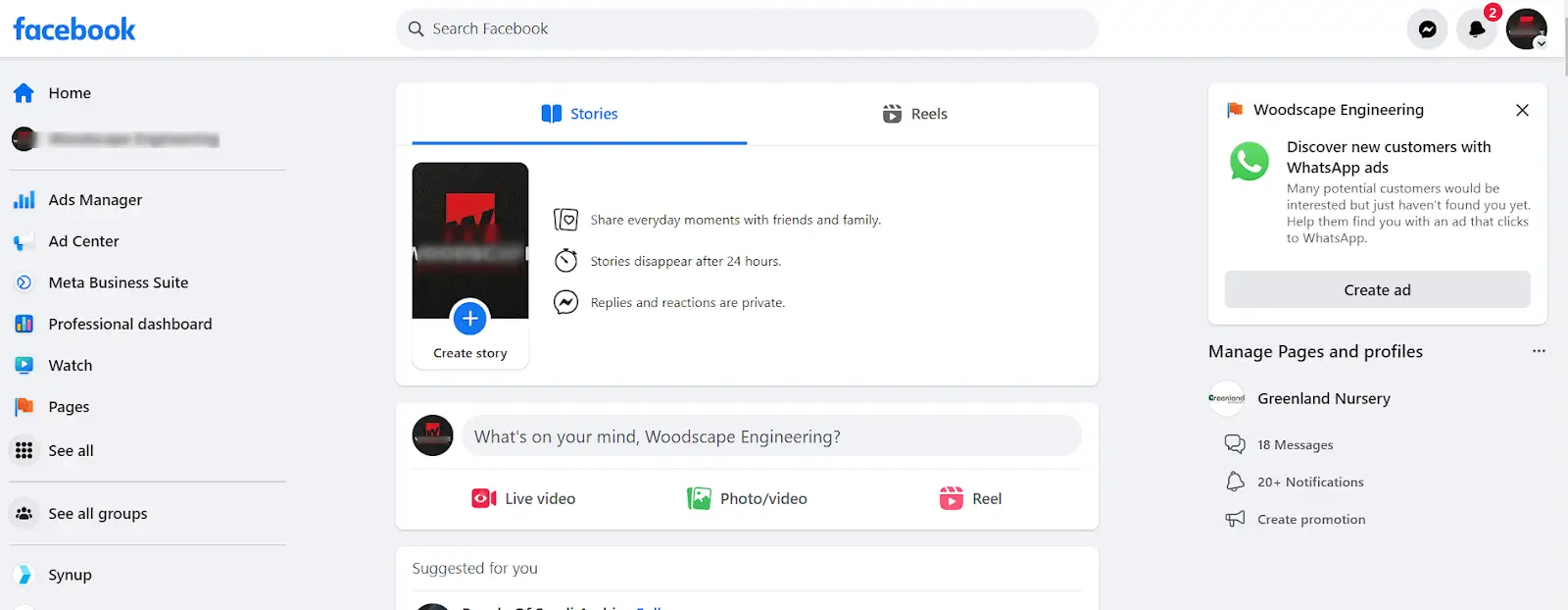
Step 2: Click on your profile photo or down arrow icon in the upper right corner of the Facebook screen.

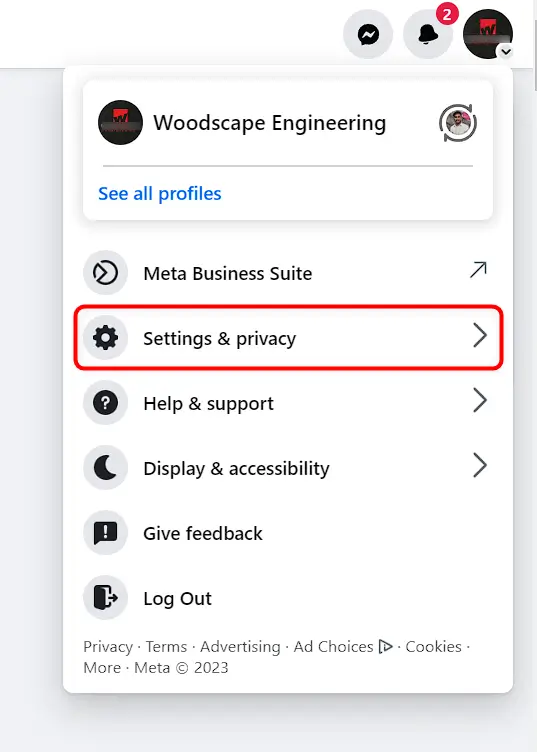
Step 3: From the drop-down menu, select "Settings & Privacy" and then select "Settings".

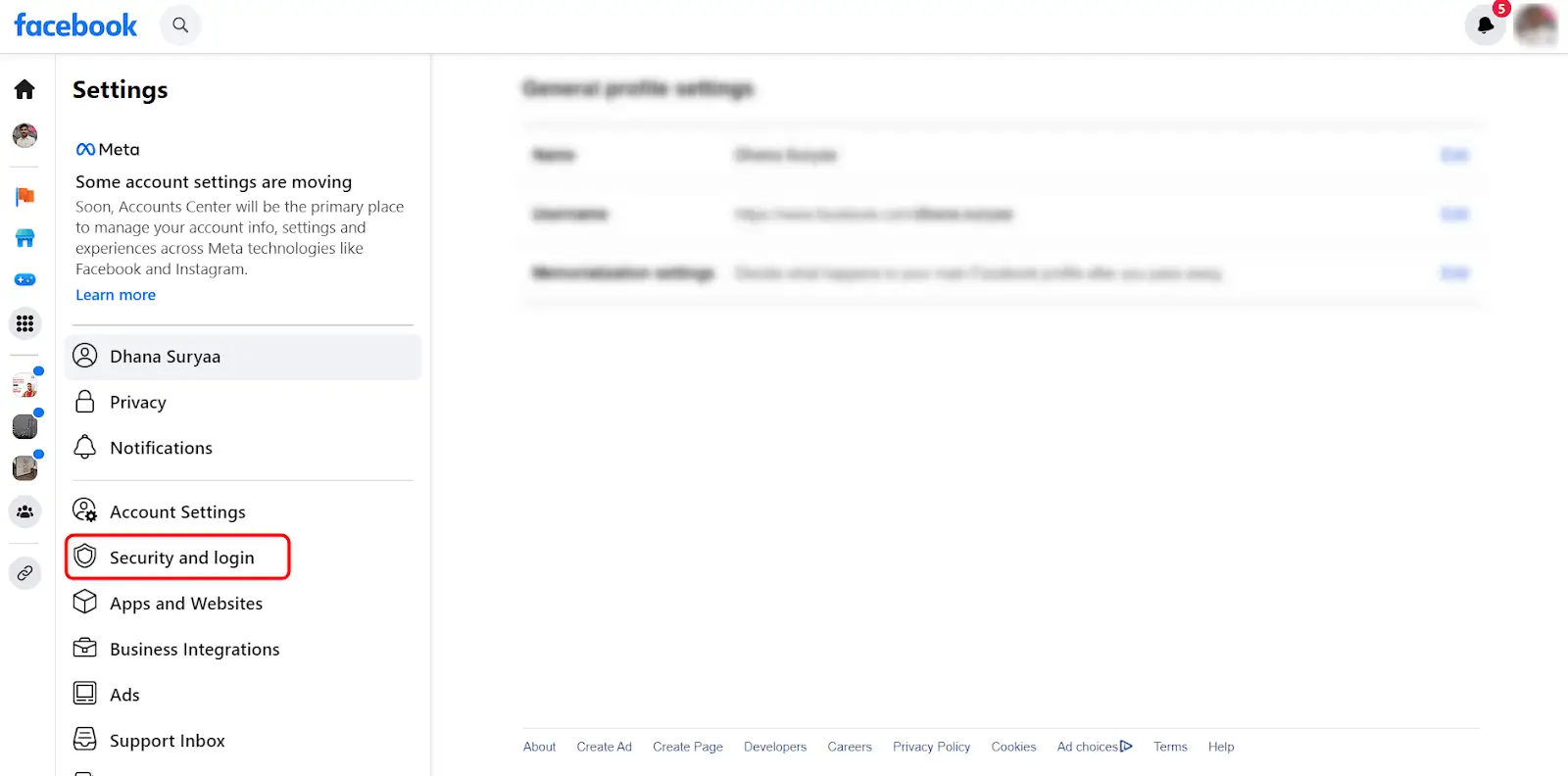
Step 4: On the left side of the screen, select "Security and Login."
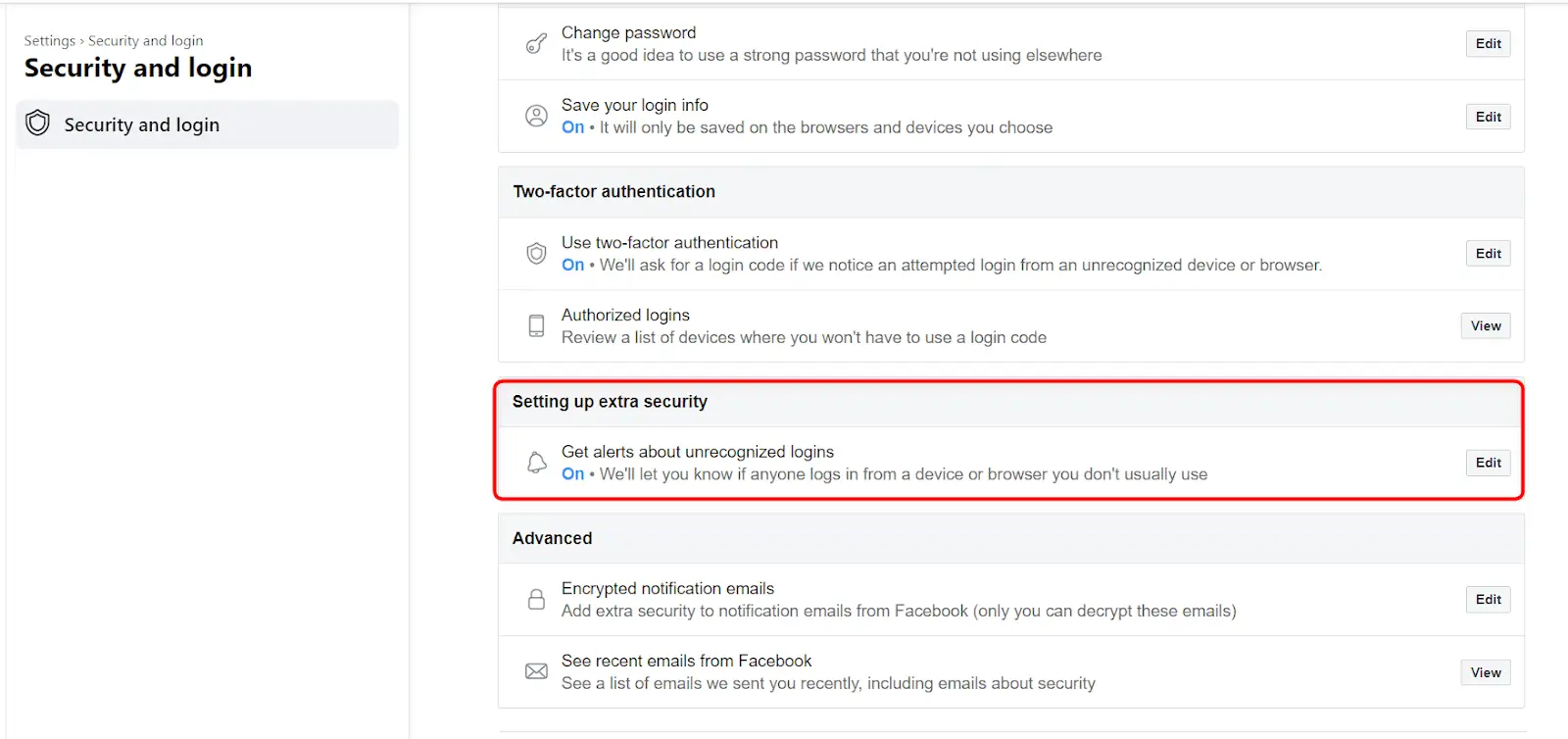
Step 5: Scroll down to the "Setting Up Extra Security" section, and click on "Get alerts about unrecognized logins."
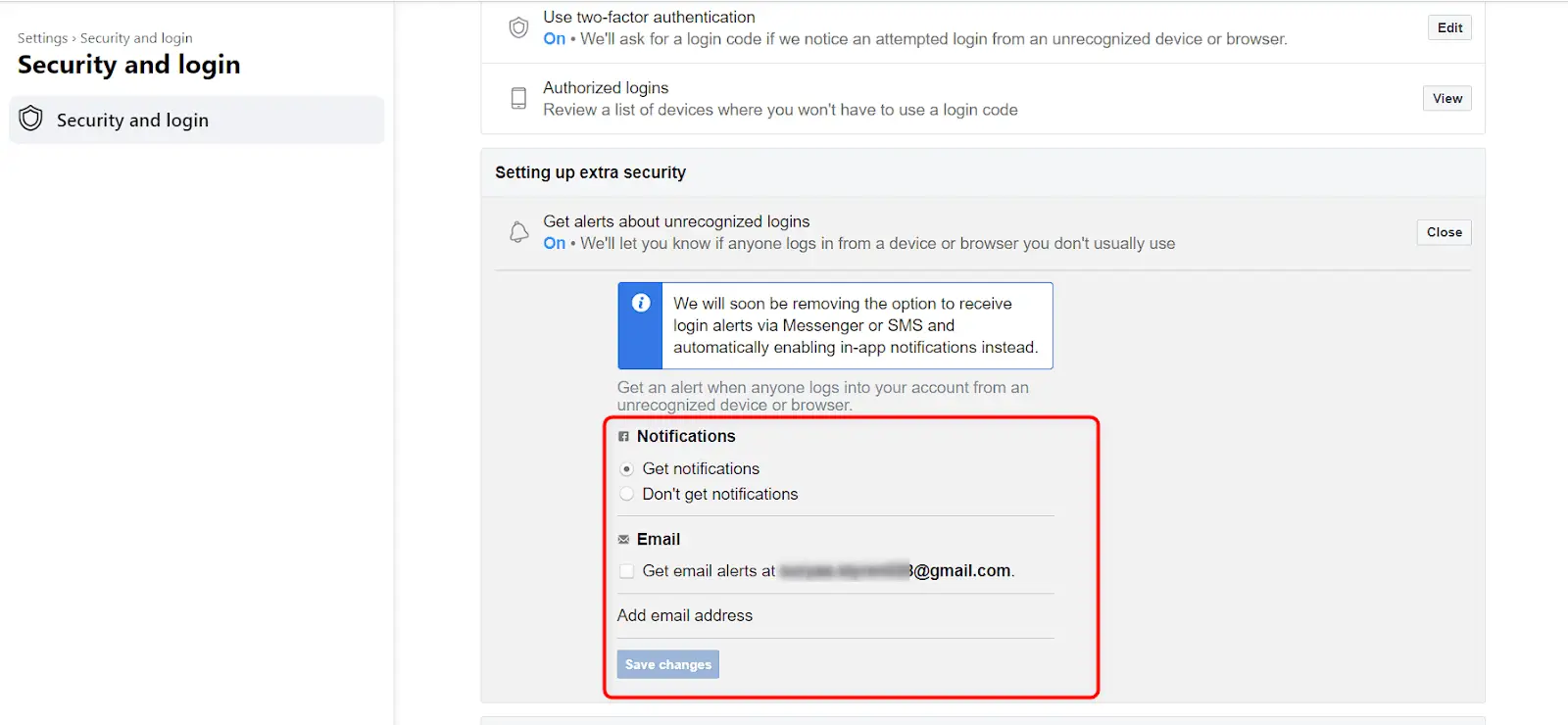
Step 6: You can choose to receive alerts via email, notifications, or both. Select your preferred method.
Step 7: Click "Save Changes."
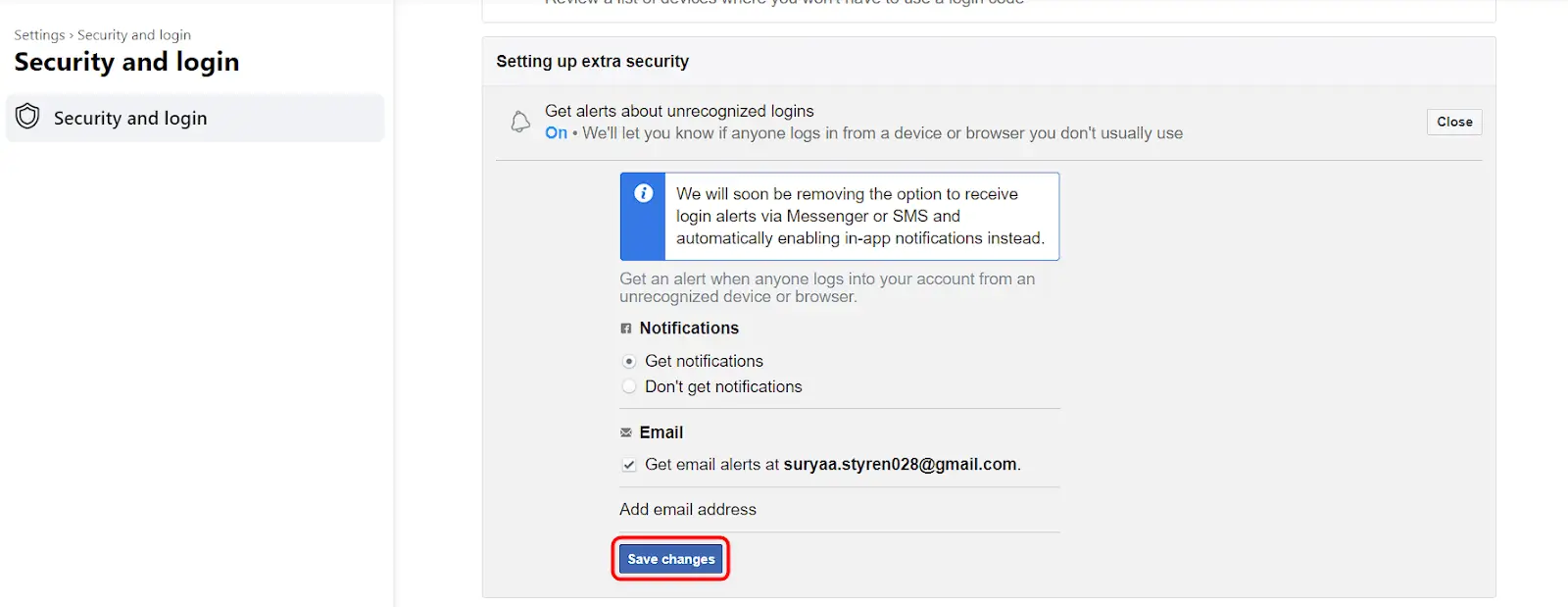
That's it! You have now enabled login alerts on your Facebook account, and you will receive alerts whenever there is an unrecognized login to your account.
If you're looking for a comprehensive social media management solution for your business, Synup's Social product might be just what you need. With Synup Social, you can easily manage and schedule social media posts across all your platforms, including Facebook, Twitter, LinkedIn, and Google My Business.