How to Delete & Remove Google Maps Listings
Your customers rely on Google Maps listings to quickly find your business and learn more about what you have to offer. When listings don’t match up with reality, they may end up lost, confused, and turn toward your competitors. To keep that from happening, you just need to remove any erroneous listings as they appear. Here’s how to get that done.
When to Remove Your Google Business Profile Listing
You should remove your Google Business Profile listing only when the business truly no longer needs to appear on Google Maps or Google Search. Some of the situations when you should remove your Google Business Profile listing include:
- Your business has permanently closed.
- Your business never existed at that location.
- You have moved to a new location.
- There are duplicate listings for your business.
When NOT to Remove Your Google Business Listing?
Deleting your Google Business Profile too quickly can cause problems. Do not remove your listing in these scenarios:
- You want to remove bad reviews or negative photos: Removing your GBP will not delete photos or reviews. Google may keep the listing as an unclaimed profile, and the negative reviews will remain.
- You manage multiple locations and want to clean up the dashboard: Removing listings unnecessarily can hurt visibility. Instead, use listing management tools like Synup to manage all your business listings across platforms like Yelp, Google, Bing and more.
- You want to pause customer interactions: If you are overwhelmed with messages or calls, adjust settings like the contact number in your listing instead of deleting it.
Read More: Local Listing Management Guide to Improve Your Ranking
Steps to Removing the Listings from Google Maps
Google has streamlined the Google Maps listing removal process to make it easier to manage your online brand presence. To complete this task, you just have to move through these five steps.
- Navigate to Your Google Maps Listing
Start the removal process by navigating to your Google Maps listing for the location in question. You will need to scroll down past the contact information in your business profile. Look for the ‘Suggest an edit’ button.
- Select ‘Suggest an Edit’ and Then Close or Remove
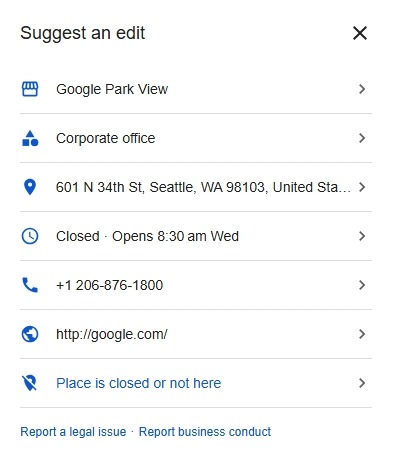
Click on ‘Suggest an edit’ to start the listing removal process. Then, select ‘Place is closed or not here’ from the list in the pop-up window. If your business has moved, it might be easier to update the address by clicking the button displaying the address instead.
- Give the Reason Why You’re Suggesting an Edit
Select the reason for your edit request to tell Google why you want the Maps listing removed. You can let them know your business is temporarily or permanently closed, for example. Or report the location doesn’t actually exist, or any other problem with the listing as it’s currently displayed.
- Add Photos as Needed to Prove Your Claim
After clicking on one of the reasons for the listing removal request, add any photos you have proving your claim. You can use photos of another business at that location, for example, or show the street signs near where your company now resides. This step is optional, but it can help speed up the listing removal.
- Submit Your Request and Wait for the Changes
Click ‘Submit’ to complete your request. After submitting, expect a response within 14 days. Google will review your reason for requesting the listing removal to confirm it’s accurate. If so, they will remove the listing as requested. Otherwise, they will leave it up and notify you of their decision.
What to Expect After You Delete a GBP Profile Listing?
Deleting a Google Business Profile isn’t always as straightforward as it seems. Many business owners are surprised by what actually happens when a listing is removed. Before you take that step, it’s important to understand the real impact of deleting or removing your Google Business Profile:
- Your ability to manage the listing is removed: Once you remove your Google Business Profile from the dashboard, you immediately lose the ability to update business information, respond to reviews, manage photos, or interact with customers. It may be possible to regain control later by reclaiming and re-verifying the listing as long as it appears on Google Maps or Search.
- The listing may still appear on Google Maps and Google Search: Deleting a Google Business Profile does not automatically remove the public listing. Google may keep it live as an unclaimed profile, particularly for long-standing businesses or those with customer reviews. This means old photos, reviews, and other information can still be visible to the public.
- Customers may still upload photos or leave reviews: Even if you delete the profile, people can still keep posting reviews with the unclaimed listing if Google allows it. Only Google can fully remove the public listing.
It's important to note that account deletion isn't permanent. You can regain control of your account, but you will need to reverify your profile.
Conclusion
If you keep a close eye on your listings, you can rest assured that your customers always get accurate info about your brand. Your efforts will help boost your online brand presence and keep happy customers coming your way.
Always remember that deleting your Google Business Profile does not automatically erase the public listing. Google may retain historical data, including reviews and photos, so only remove a listing if it truly no longer represents your business.
Also Read: Top 10 White Label Local Listing Management Tools
FAQs
- Will removing my Google Maps listing delete my Google Business Profile?
No, Google Maps listings and Google Business Profiles are separate. Removing a listing does not automatically delete your GBP profile, and deleting your GBP does not guarantee that the Maps listing will be removed.
- How do I remove my business profile from Google Maps?
To remove your business profile from Google Maps, go to the public Google Maps listing and click “Suggest an edit.” Choose “Place is closed or not here” and select the reason that applies (such as “Permanently closed”, “Moved to a new location”, or “Doesn’t exist here”). Submit the request and wait for Google to review it.
- Why does my old location still appear on Google Maps after we moved?
Google keeps historical place data. To update your address in GBP, change your new address and mark the old location as "Moved to a new location" using "Suggest an edit."
- How long does it take for Google to remove a business profile?
When you mark a business as “Permanently closed,” Google typically stops displaying it to customers within a few days. Keeping the profile in your account can expedite verification and ensure that the closure status is applied correctly. While full removal of the listing is not guaranteed, its visibility usually decreases shortly after the closure is confirmed.
- Why can’t I remove my business from Google?
You may not be able to remove your business listing because only primary owners have the authority to delete profile content. Additionally, new owners or managers must wait 7 days before they can make any deletions. Even if you have the necessary permissions, Google might still retain the listing on Maps as public information if it believes the location still exists or has customer activity. Deleting your profile does not guarantee that the public listing will be removed.