Using Saved Lists To Manage Your Prospects
Learn how you can manage your SMB prospect lists in Synup & streamline your sales outreach.
Keep your leads tidy, enriched, and export-ready, so your team can run targeted outreach without digging through scattered spreadsheets.
Synup’s Saved Prospects feature lets you collect prospects into named lists, view their profiles, enrich their data with AI, and export clean files for sales outreach or analysis. Important: you’ll only see a prospect’s full contact details after they’ve been added to a saved list. This keeps your prospecting workflow deliberate and privacy-aware.
Why use Saved Prospect Lists
Automating repetitive tasks might sound like a luxury, but for any growing agency, it’s a necessity. Automating key processes not only saves you time but also ensures consistency in your communications and task management. Here’s why automating tasks with Synup OS is a game-changer for your agency.
Organize leads by intent or campaign
Group prospects by industry, geography, campaign, or source so each team knows exactly which list to work on.
See full contact details only when ready
Contact info appears once a prospect is added to a list, preventing accidental access to contacts you haven’t approved yet.
Enrich data at scale with AI
Add AI-generated fields (services, decision-maker, social links) to every item in a list automatically.
Export and action quickly
Download CSV/XLSX/JSON for CRMs, email outreach tools, or offline analysis. You can also use the list to run email sequences from within Synup.
Repeatable, shareable workflows
Named lists become repeatable audiences for future campaigns or reporting.
How to manage prospect lists in Synup OS
Follow these steps to create, enrich, view, and export prospect lists.
1. Navigate to Saved Prospect Lists
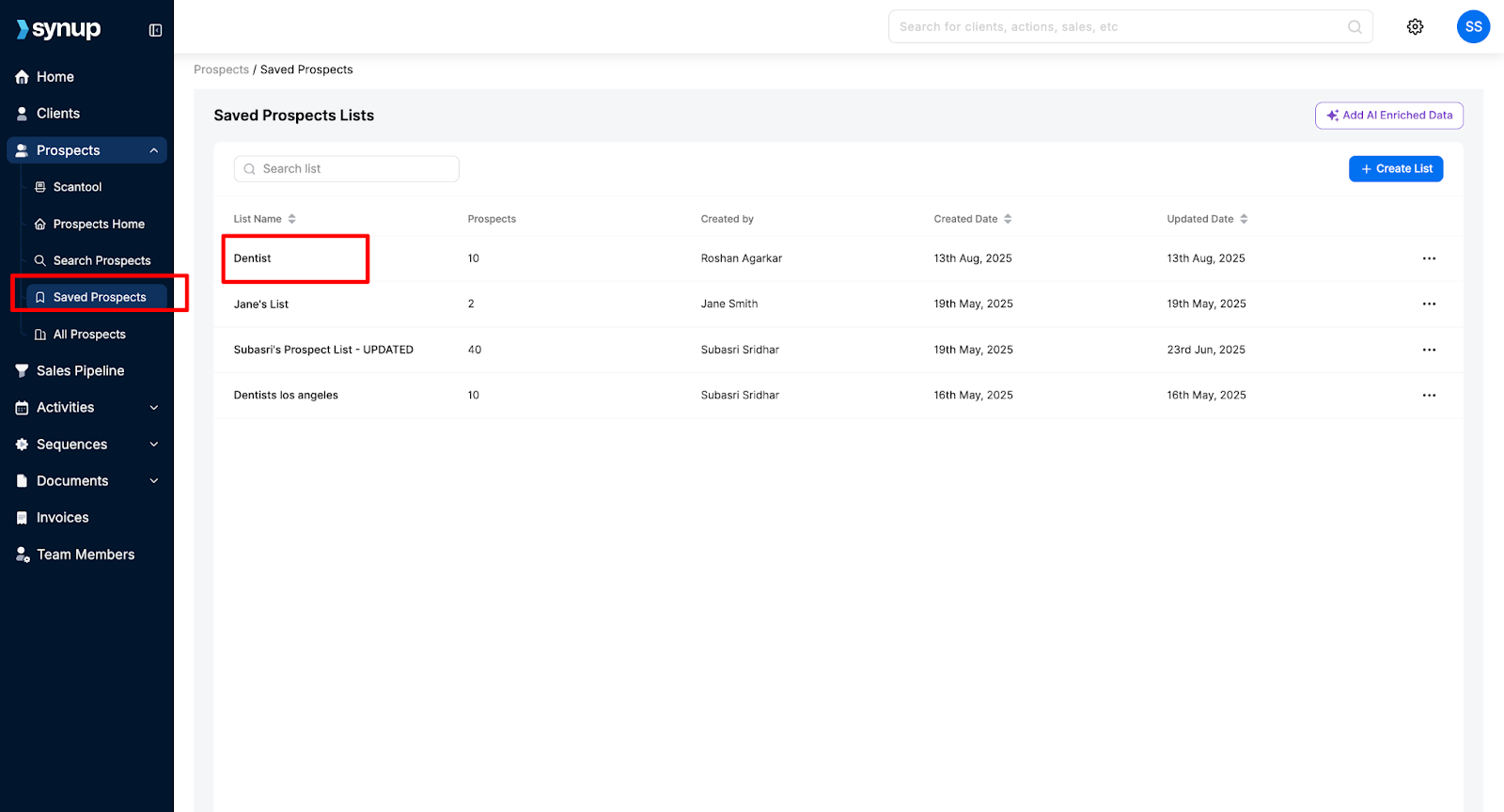
From the left-hand menu: Prospects > Saved Prospects. This opens the Saved Prospects page where all your lists live. Click any list name to open and view the prospects it contains.
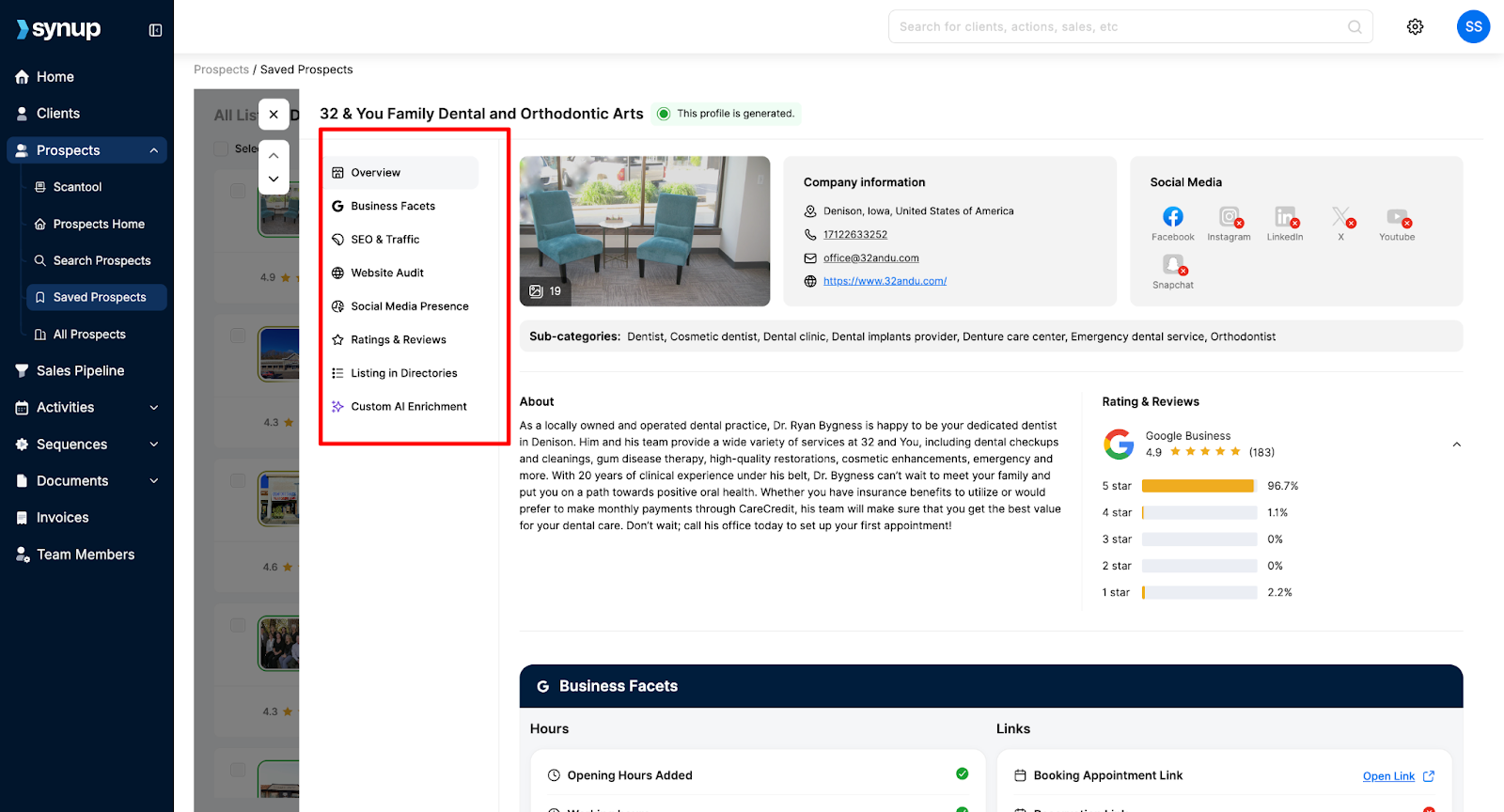
2. View prospect details
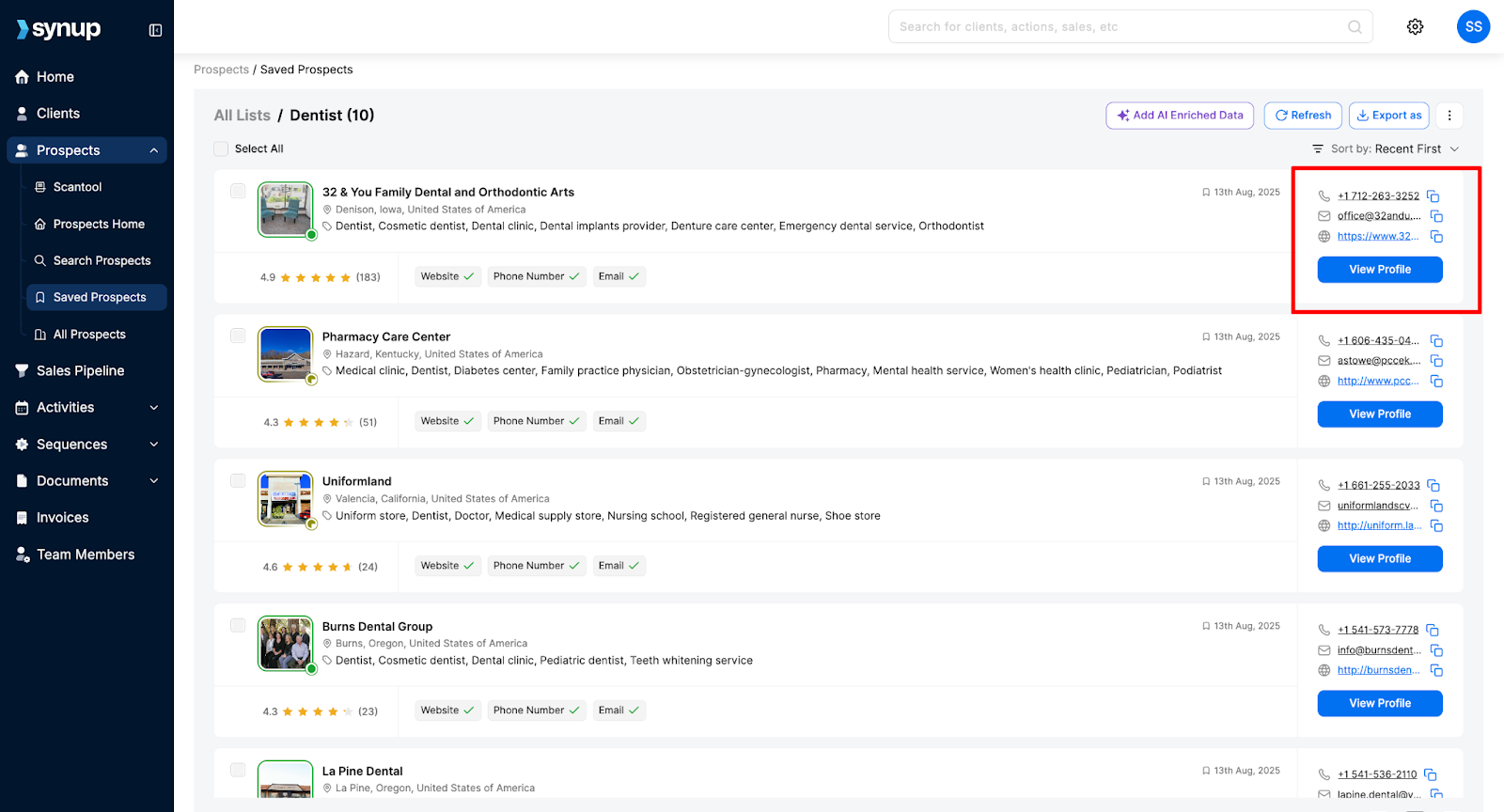
Inside a list you’ll see each prospect’s basic info and a View Profile button.
When a prospect is added to a saved list, their full contact details (phone, email, website) appear on the right side of the profile view. Use the View Profile button to inspect notes, metadata, or the AI-enriched fields once they exist.
3. Use AI to enrich data
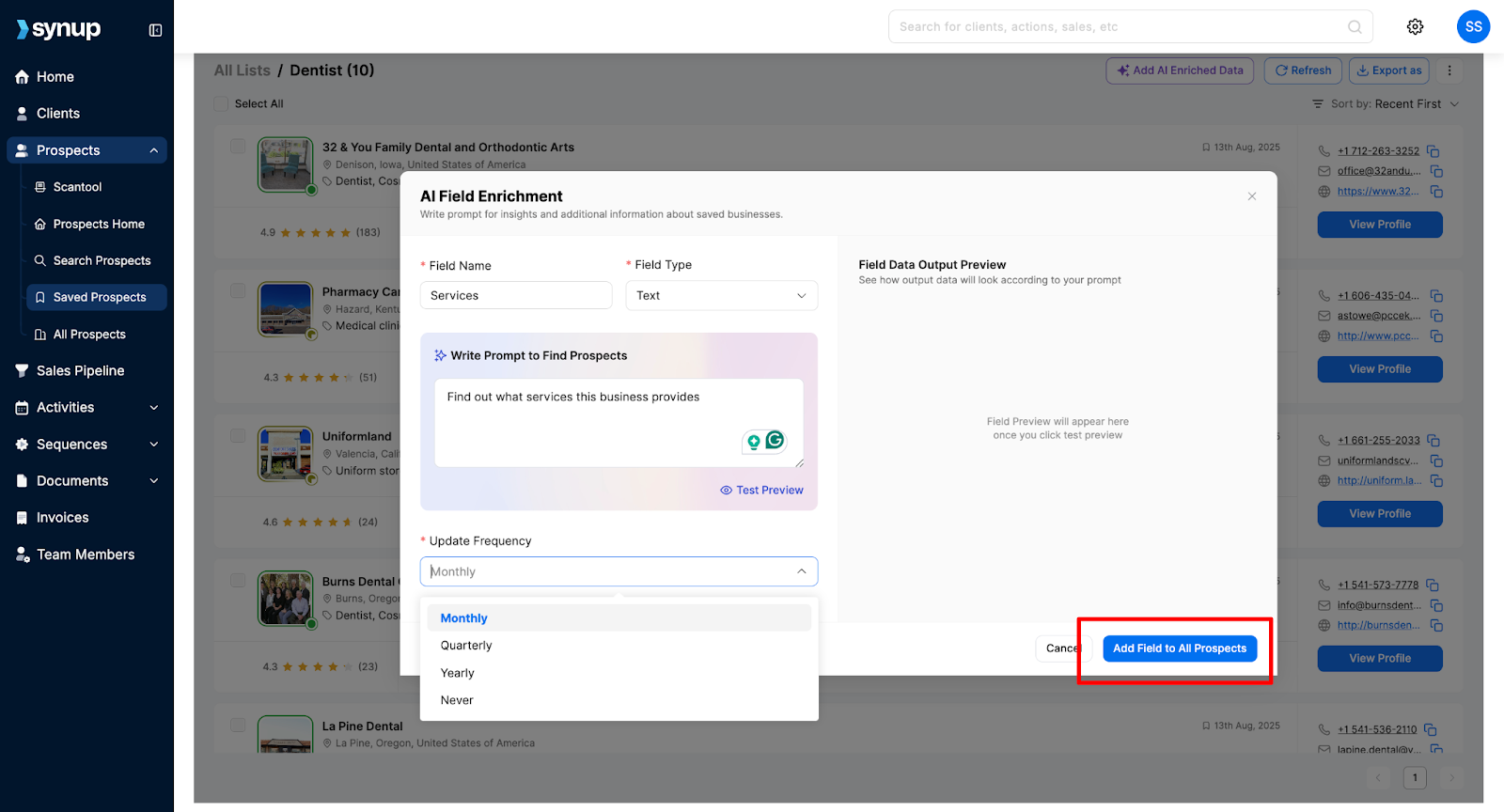
Click Add AI Enriched Data (top-right). In the pop-up you can:
- Enter a prompt describing what you want (examples below).
- Choose an update frequency (Monthly / Quarterly / Yearly).
- Click Add Field to All Prospects to apply the enrichment across the whole list.
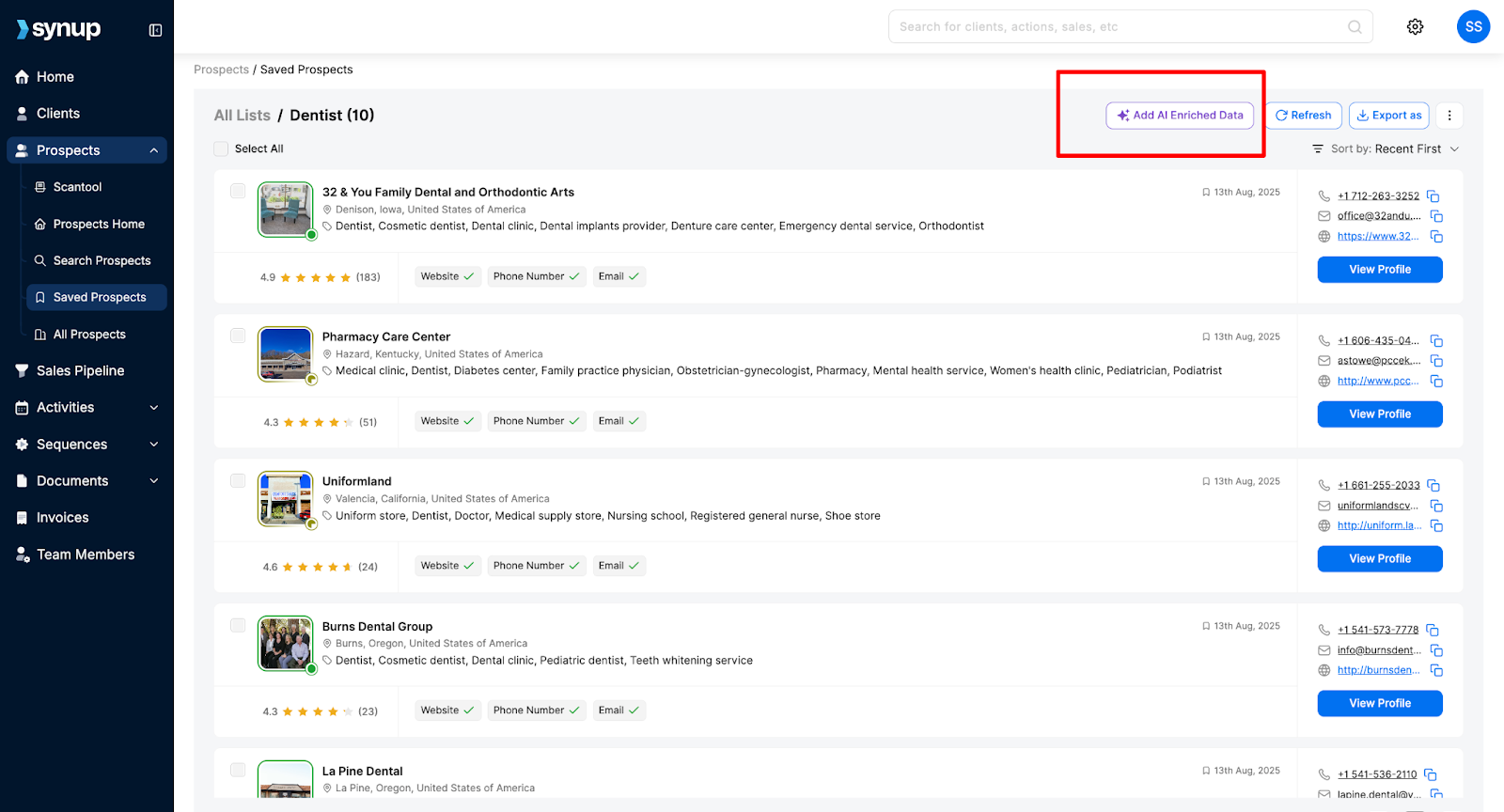
Synup OS’s AI searches the web and populates the new fields so you don’t have to Google each prospect manually. AI fields are ideal for details like services offered, primary contact role, or social profiles.
Sample AI prompts
- “List the primary services offered by this business.”
- “Find the company’s LinkedIn page.”
- “Estimate company size (employees).”
4. Export your list
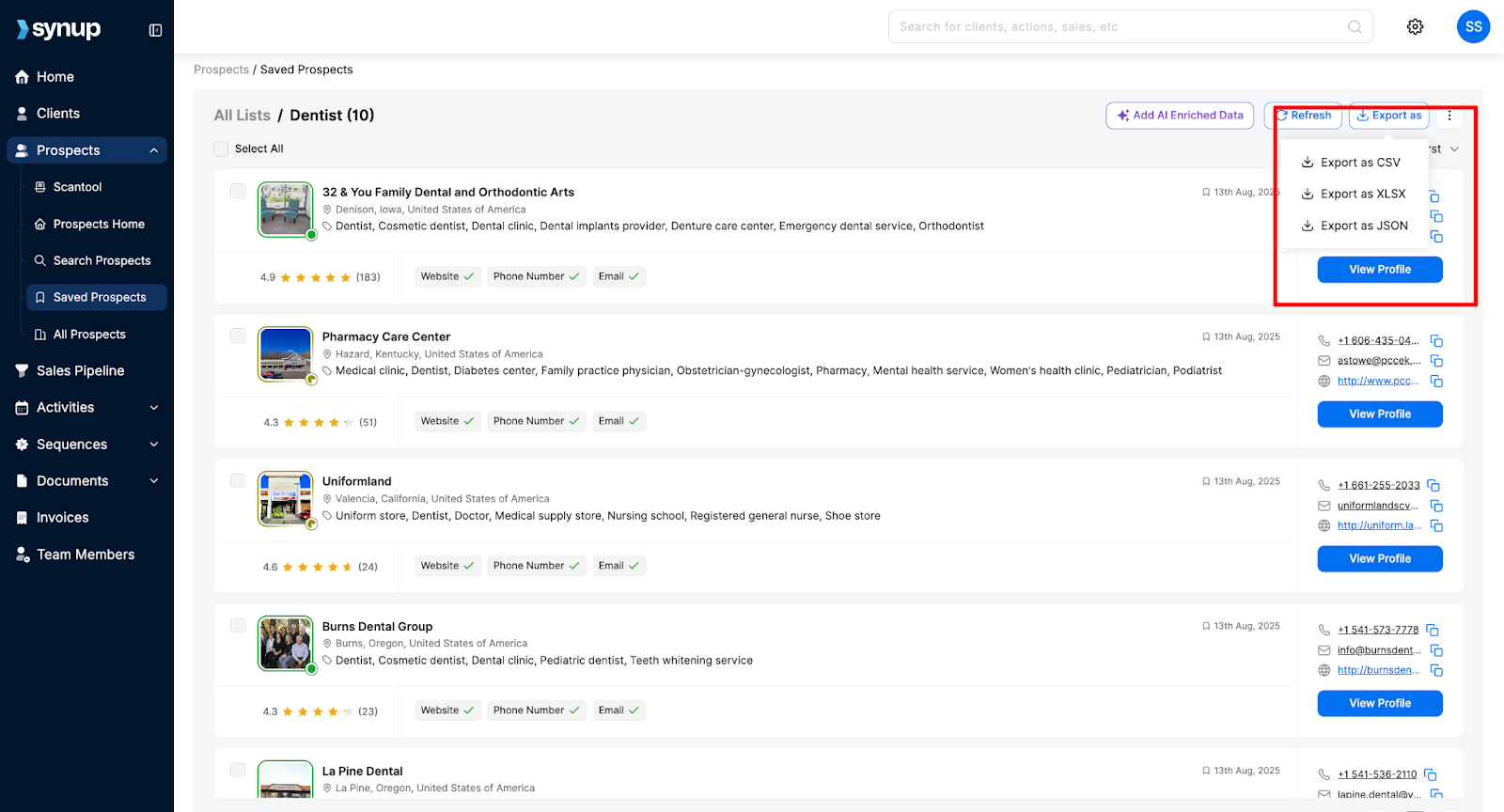
Click the three-dot menu (⋮) in the list view (top-right) > choose Export > pick CSV, XLSX, or JSON.
Exports typically include: prospect name, company, phone, email, website, and any AI-enriched fields you added. Use CSV for CRM imports, XLSX for analysis, and JSON for programmatic workflows.
Pro tips & gotchas
- Naming convention: Use structured names (e.g., Dental_Mumbai_Q4_2025) so lists are instantly searchable.
- Enrichment cadence: Choose Monthly for fast-moving industries and Quarterly for stable verticals to avoid unnecessary API calls.
- Export format choice: CSV is universal for CRMs; XLSX is easier for humans to review; JSON is best for automation.
- Privacy & compliance: Contact details become visible only after adding a prospect to a list, still confirm you have the right to contact them and follow local opt-in rules before outreach.
Streamline Everyday Processes with Powerful Automations
Saved Prospect Lists turn messy lead piles into structured, enriched audiences your team can act on fast. Name lists clearly, enrich intelligently, and export the exact file you need, all from one place in Synup OS.
Ready to prospect new SMBs for your agency? Try Synup OS today