
Export review and campaign data
How do I export review and campaign data?
Synup provides CSV downloads for the all-locations Reputation table, review-request responses and delivery errors. Set the date range, search and filters before exporting so the file matches the data you are reviewing. Synup does not generate a PDF review report; use the CSV in your own reporting template when you need a client-ready document.
Key facts
| Where it lives | Reputation at all-locations scope; Review Invite → Responses; Review Invite → Delivery Errors |
| What you need first | Review, response or delivery-error data in the selected scope |
| What it changes | Nothing. Each action downloads a CSV to your device |
Why this matters
Each export answers a different question. The Reputation CSV compares locations, the responses CSV contains feedback collected through review-request campaigns, and the delivery-errors CSV identifies sends that failed, bounced or reached an unsubscribed recipient.
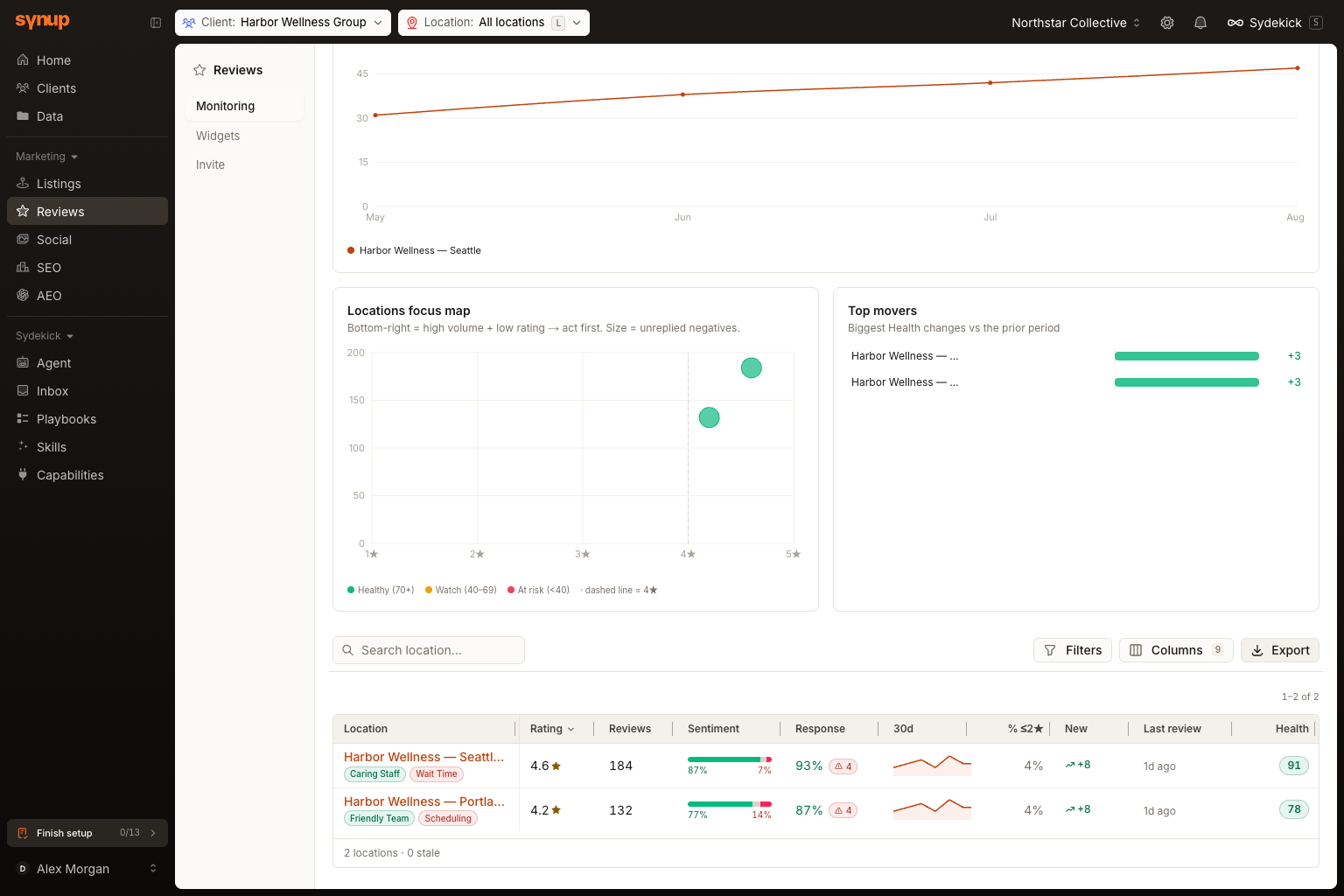
Export the all-locations Reputation table
- Choose a client and set the location picker to All locations.
- Open Reviews to reach the Reputation roll-up.
- Set the date range, then apply the location search and any attention, rating, health or minimum-review filters you need.
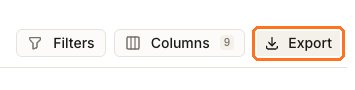
- Select Export. Synup downloads
reviews-rollup.csvwith every row that matches the current search and filters, not only the visible page.
Export review-request responses
- Open Review Invite and select Responses.
- Set the response filters before downloading.
- Open the three-dot Settings menu and select Download Report.
- Synup downloads a dated
review-responses-YYYY-MM-DD.csvfile. If the export reaches its safety cap, Synup warns that the oldest responses are not included.
Export delivery errors
- Open Review Invite, then open the three-dot Settings menu.
- Select Delivery Errors.
- Set the status or search filters you need.
- Select Export CSV. Synup downloads
delivery-errors.csvwith every matching row, not only the visible page.
What you'll see when it's done
- A CSV file in the browser's download location.
- Portfolio metrics in
reviews-rollup.csv. - Response or delivery details in the corresponding campaign export.
Watch out for
Questions people ask
What should I check before I begin?
Check the client, location scope, date range and filters. The downloaded file reflects those choices, so an unexpectedly small report usually means the view was narrowed before export.
How will I know the workflow is complete?
The browser downloads the CSV. Synup does not queue these exports for email delivery.