
Add rank-tracking keywords
How do I add keywords and generate their first grid report?
SEO → Ranking Analytics → Add Keyword takes the search terms you want to track, spreads a 7×7 grid of 49 measuring points around the location, and checks your position at every one. Generating the report costs credits, charged per grid point, so it is worth getting the spacing right before you press Generate Report.
Steps
Pick the client and the location in the top bar, then press Add Keyword.
Type a keyword and press Enter. Each one becomes a chip. You can paste several separated by commas; Tab also commits text that is still in the field.
Write the phrase a customer would actually use for the service or category you want to measure. The Product checks that same phrase from every coordinate in the grid, so the grid location — not whether you typed the town into the keyword — sets the geographic vantage point.
Set Distance Between Grid Points. The toggle switches between kilometres and miles, and the slider sets the gap between neighbouring points.
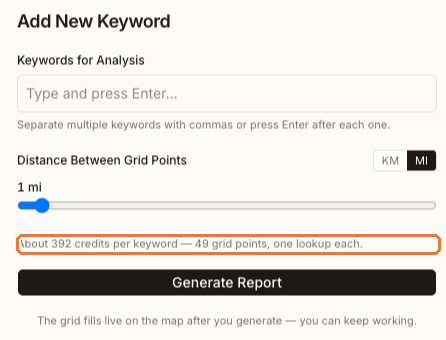
Spacing decides how much ground the grid covers. At 1 mile the 49 points reach about three miles out in each direction from the business — roughly a town. Widen it and you measure a whole metro area but stop seeing which neighbourhoods you lose; tighten it and you get street-level detail over a small area.
Read the credit line above the button, highlighted above. With all 49 points active, it shows the current per-point rate multiplied by the full grid. See the exclusion limitation below before treating a lower displayed point count as a billing estimate.
Press Generate Report. The panel closes and the grid fills in on the map point by point, so you don't have to wait on the screen.
What the credit estimate actually promises
The line reads About 392 credits per keyword — 49 grid points, one lookup each, and the product's own wording is the honest part: about.
The figure is grid points × the live rate for one lookup. At the displayed rate of 8 credits, the default 49-point grid shows 392. A successful provider response is charged even when your business is not in the results; a network or provider task failure is not charged.
With all 49 points active, that makes the displayed figure the full-grid estimate. There is one important current limitation: clicking points in Grid Points Preview lowers the number shown in the modal, but generation still measures the full stored lattice. Do not exclude points as a way to reduce the charge, and do not treat the reduced number as a billing ceiling.
What you'll see when it's done
- The keyword appears in Select Keyword on the Overview tab
- If at least one point returns successfully, the saved report supplies the map and its Top 3, Top 10 and Avg Rank measures
- The same stored ranking evidence supports the competitor view; recommendation and Sydekick-insight sections can calculate their own results when you open or generate them
Watch out for
- A repeat in the same month uses the same charge identity. Credits are deduplicated by keyword, month, row and column. Changing spacing changes the coordinates measured, but it does not create a second charge identity for those same row-and-column points in that month. A new month creates new point identities and can charge again.
- A keyword you do not rank for will come back uniformly negative. If the business does not surface in the top 20 local results for that phrase, every successfully measured point returns
20+. That is still a real answer, but pick your first keyword to be one you have a genuine chance on. - The manual modal has no location-total counter. It accepts up to 25 keywords in one submitted batch. The
0 / 25 keywords usedguard belongs to the Sydekick suggestion surface and is not enforced as a location-total limit by this manual modal.
Questions people ask
Can I exclude grid points I don't care about?
The Grid Points Preview lets you mark points as excluded, and the map later dims those points. Current generation still measures the full lattice, and report-level statistics still use the measured grid. The modal's active-point counter and displayed estimate decrease, but the generated lookup set does not. Do not use this control to plan a lower bill.
I entered two keywords. Is the cost doubled?
Yes. The estimate line switches to a combined figure showing keywords × grid points. Each keyword gets its own full grid.