How to remove unrelated photos from Google Maps listing
Learn to remove unrelated photos from Google Maps listing posted by business and flag or report irrelevant photos posted by customers.
As a business owner, you should take care to check your Google Maps listing on a regular basis to evaluate all the photos that Google users may have posted there. After all, it is extremely easy for anyone to upload any image to your listing on the Google Maps platform. And any number of these images might reflect negatively on your business and its products/services.
Google has strict regulations regarding the material that users can post on its platform. Any user who notices potentially prohibited content on Google can report that content for review. Google officials will review the content and determine if it should be removed, blocked, or otherwise restricted.
If you see a photo on your Google Maps listing that violates Google policies, you can flag it for review and request its removal. Just be aware that it may take several days for Google to address your tag and complete the review process.
Although you can’t guarantee that the photos you tag will ultimately be removed, you will want to do everything possible to control which photos appear on your Google Maps listing and which do not. So if you’re ready to fully optimize your Google Maps photos, follow the simple steps below. To make things even more convenient, we have provided separate instructions for a variety of digital devices and operating systems.
What are Google Maps Photo Contributions?
Google Maps photo contributions are images that users upload to Google Maps to provide information about places, businesses, or landmarks. These images are publicly displayed on the business's Google Maps and Google Search listings. The purpose of these photos is to help others get a better understanding of what the location looks like.
When Should You Remove Photos from Google Business Profile
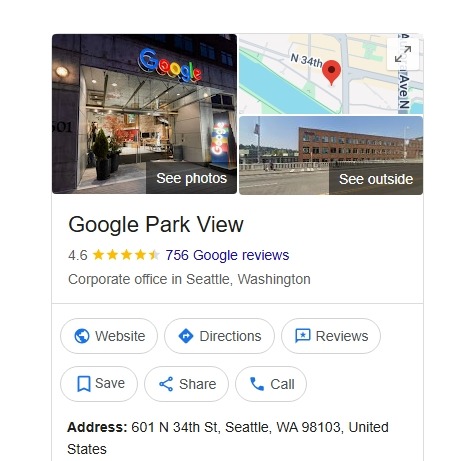
Anyone with a Google account can upload photos to a Google Business Profile listing without the need for the business owner's approval. However, these photos can significantly influence how customers perceive the business. If someone uploads a picture of a different location, it can make your listing appear unprofessional or inaccurate, leading to customer confusion. Additionally, poor-quality or irrelevant photos can diminish trust, as customers often form quick judgments based on images.
It's important to remove photos from your Google Business Profile (GBP) when they are misleading, inappropriate, or no longer reflect the true nature of your business. You should consider removing a photo when:
- The photo is not related to your business.
- The photo is misleading or inaccurate, like old signage or an outdated menu.
- The photo violates Google’s content policies or local laws.
- The photo violates privacy or poses security risks.
However, you shouldn’t remove a photo if it’s truthful or relevant, as Google won’t approve your request, even if it hurts your brand.
How to Remove Photos from Google Maps
You can only delete the photos that you have uploaded yourself. If a customer has posted a photo, you cannot delete it immediately; you can only report it. Google will then review the reported image and remove it only if it violates their policies (such as being off-topic, inappropriate, misleading, a breach of privacy, spam, or containing sensitive information).
Additionally, Google advises against submitting multiple reports for the same photo, as repeated requests can slow down the review process.
Here’s a step-by-step guide to removing photos from Google Maps:
I. How to Delete Photos You Uploaded
A. On Computer (Search or Maps):
- Search your business name on Google Search or Maps.
- Click Photos.
- Select the image you want to delete.
- Click the Delete (trash) icon.
- Confirm.
B. On Android (Google Maps app):
- Open the Google Maps app.
- Tap Business at the bottom right.
- Tap See Business Profile, then select Photos.
- Choose the photo you want to remove.
- Tap the Delete (trash) icon.
- Confirm the deletion.
C. On iPhone/iPad:
- Open the Google Maps app.
- Tap Business at the bottom right.
- Tap See Business Profile, then select Photos.
- Choose the photo you want to remove.
- Tap More, then select Delete this photo.
- Tap OK to confirm.
Also Read: Top 20 Google Business Profile Management Tools for Agencies
II. How to Remove Photos Uploaded by a Customer
Please note you shouldn't remove authentic photos posted by customers. Only remove unrelated/spammy photos posted by customers or pictures posted by someone who hasn't done business with you.
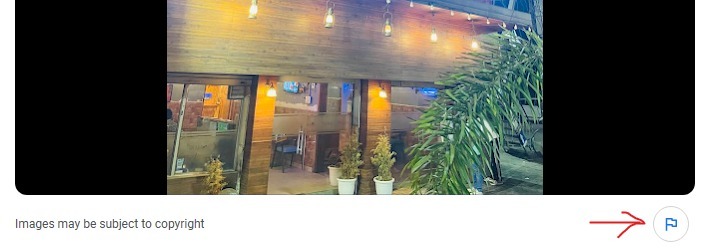
A. Report customer photos using Google Search:
- Go to your Business Profile.
- Click Photos, then select View all photos.
- Select the photo you want to remove.
- Click Report a problem (flag icon).
- Choose a reason (e.g., Not a photo of the place, Privacy concern, Spam).
- Submit.
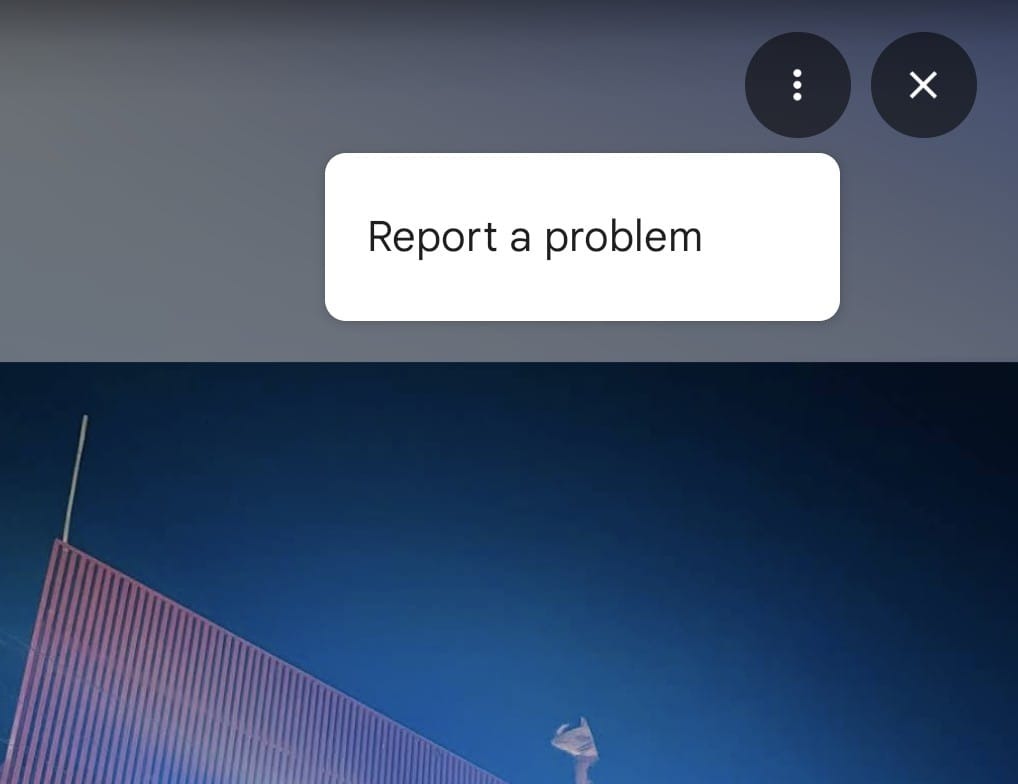
B. Report customer photos using the Google Maps app:
- Open Google Maps.
- Tap Business at the bottom right.
- Tap See Business Profile, then select Photos.
- Select the photo you want to report.
- Tap More, then choose Report.
- Select the appropriate reason.
- Tap Submit.
Monitor Your Google Maps Photos Over Time
Most business owners rarely check the photos that customers upload to their Google Maps listing. However, it is essential to review these photos regularly, as they create the first impression for potential customers. A quick check helps you identify any issues promptly.
A smarter strategy isn’t to obsessively erase negative photos, but to overwhelm them with a greater number of positive ones. Consider uploading several official, high-quality images, such as pictures of the exterior, interior, products, and staff.
If you’re managing multiple locations or working with clients, learning effective local listing management strategies can help maintain consistency across platforms.
If time is tight, simply review your photos regularly and add a few accurate, high-quality images. Doing this alone helps keep your listing trustworthy and credible.
Also Read: Top 10 White Label Local Listing Management Tools
Conclusion
Stay on top of your Google Maps images by flagging irrelevant ones quickly and consistently posting sharp, on-brand photos that show your business today. You may not control every odd user upload, but you absolutely control the impression, and on Google Maps, the impression determines whether people visit or scroll right past.
For a more efficient way to manage listings across platforms, tools like Synup simplify monitoring and maintaining a polished, consistent presence for your business or clients.