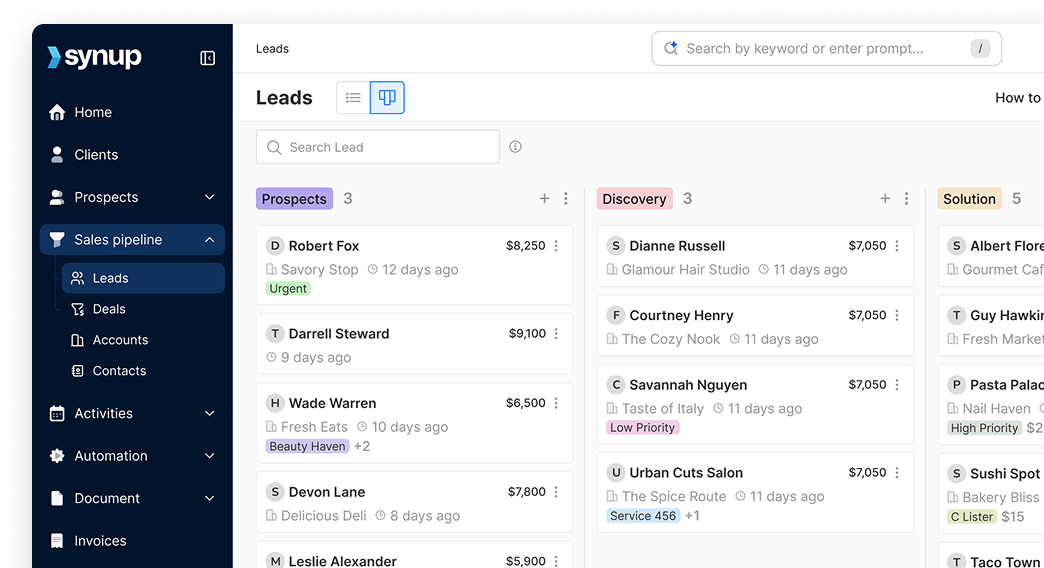
How to Build a Client Project Tracker from Scratch
Build a client project tracker from scratch. Find detailed steps, platform tips & examples to boost agency accountability & client trust in Synup’s superguide.

If you’ve ever managed more than five client projects at once, you’ve probably lost track of at least a couple of key updates, responsibilities, to-dos, and deadlines. Then, when a client calls asking for an update, you’re scrambling through Slack and Trello boards to piece the story together.
That chaos doesn’t mean you’re bad at operations; it’s simply what happens without a central source of truth. The challenge is even greater for growing agencies juggling projects of every type and size.
Agencies that set up structured trackers run smoother and keep more clients. The biggest reasons for failure include missed communication, scope creep, moving goal post syndrome, poor visibility, and weak accountability. A tracker directly tackles these gaps.
This guide shows you exactly how to build one, which tools to use, and why each step matters.
TLDR: How to Build a Client Project Tracker from Scratch
- Managing many client projects without a tracker leads to lost updates, missed deadlines, and chaos.
- A client project tracker acts as a central hub for goals, updates, owners, and timelines.
- Only 35% of projects succeed globally (CHAOS Report). Failures come from poor visibility, weak accountability, and missed communication, problems a tracker solves.
- Essential fields: Client, Project, Lifecycle Stage, Status, Health Score, Account Manager, Goal, and Due Date. These create structure, accountability, and visibility.
- Some well-known platforms that can be used to create project trackers:
- Google Sheets/Excel: Free, simple, but manual. Works for <10 clients.
- Smartsheet: Adds automation and Gantt charts. Costs about $7/user/month. Good for 10–20 clients.
- Airtable: Powerful database with Kanban, Gantt, and Calendar views. Great for 20+ clients, but has a learning curve. Costs about $20/user/month.
- Templates to speed setup: Kanban boards for workflows, Gantt charts for timelines, roadmaps for quarterly goals, and Notion databases for tasks and notes.
- Best practices: Weekly check-ins, log changes immediately, review dashboards for bottlenecks, and use trackers as coaching tools.
- Spreadsheets eventually fail at scale: Siloed tools slow execution. 59% of execs say silos hurt decision-making.
- Synup Agency OS solves this with:
- Centralized tasks, notes, and emails.
- Real-time collaboration with instant updates.
- Calendar and mailbox integration for context.
- White label client portals for transparency.
- Churn forecasting to flag at-risk accounts early.
Essential Elements of a Client Project Tracker
A good tracker strikes a delicate balance.
Too simple, and it becomes useless. What about complex projects?
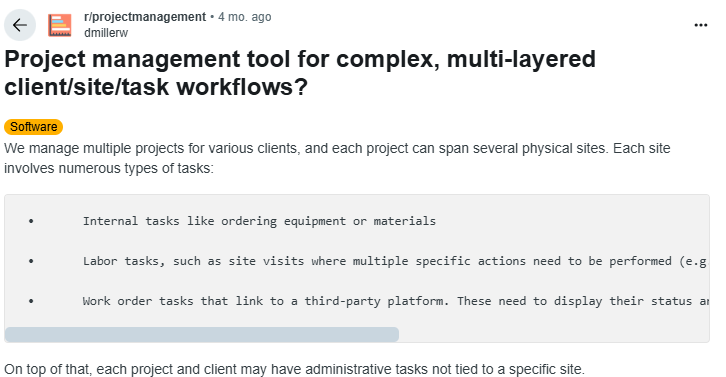
Too complex, and your team won’t use it. Case in point:
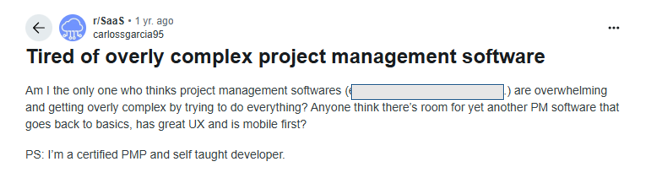
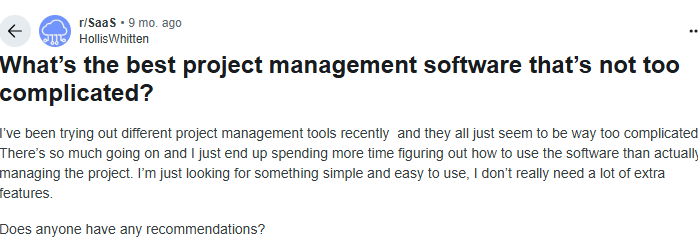
The secret is to lock in core fields that guide action and create visibility. Below are the essential fields you’ll need and why they matter in practice. Treat this like a checklist:
- Client Name (Obviously): Without this, you’re mixing apples and oranges. Every deliverable, note, or update must tie back to the right client. If you’re working with 12 brands at once, losing this connection means confusion and errors.
- Project Name/Service: “SEO Campaign – Q4” tells a lot less than something concrete like “Website Redesign”, even if it’s the same client. Clear project naming avoids wasted hours trying to guess what “Phase 2” means six months later.
- Lifecycle Stage (Onboarding, Active, Offboarding): This is good for resource planning. Onboarding projects usually need more attention. Active projects hit the rhythm. Offboarding projects need documentation. Labeling these stages lets managers assign the right staff at the right time.
- Health Score (Red/Yellow/Green): Here’s a quick pulse check. Green = stable, Yellow = minor risks, and Red = urgent intervention. For example, if a client’s SEO campaign is behind because dev access is delayed, mark it Yellow. That way, leadership sees risk before the client starts complaining.
- Account Manager/Delivery Lead: Nothing kills accountability like thinking someone’s on a job. “But, I thought she was handling it.” Assign every client project to one person. They may delegate tasks, but the buck stops with them.
- Primary Goal or Objective: Why is the project happening? Is it lead generation, retention, or brand awareness? Writing this down avoids the “moving goalposts” syndrome. Example: a PPC campaign with the written goal “Lower CPL by 20%” is easier to track than “get more leads.” You can also set ‘SMART’ goals for your projects:
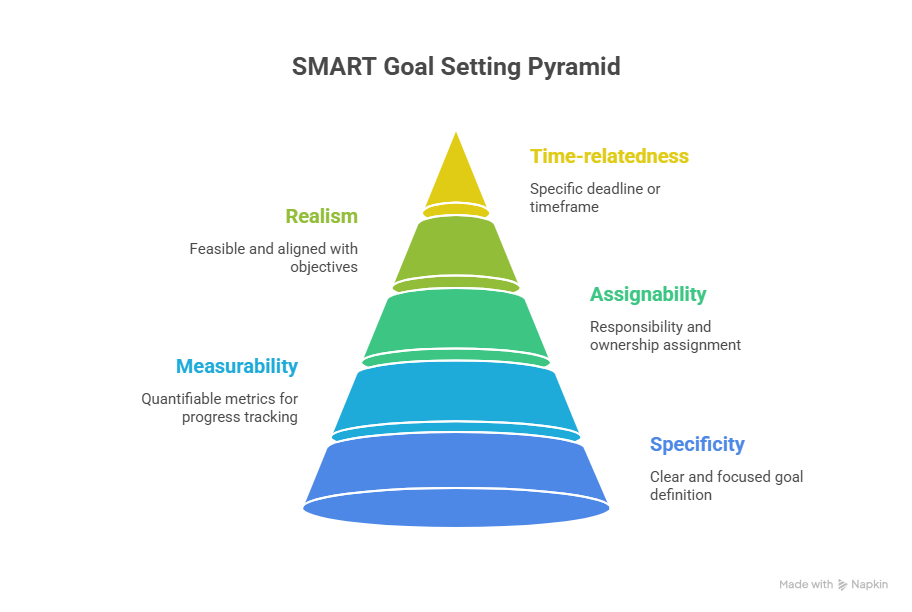
- Status (Not Started, In Progress, Blocked, Completed): Projects stall all the time for several reasons. Having a clear “Blocked” status highlights bottlenecks early. If three projects are blocked because of creative approval, you can escalate to leadership in one or a few clicks.
- Due Date: Deadlines are not optional. Without them, projects stretch endlessly, scope creeps in, and profitability tanks. One late deliverable can snowball into missed monthly reports and delayed invoicing.
These are your guardrails. A health score tells you where to focus rescue efforts. For example, if a client’s health score drops to Yellow, the tracker signals the need for an intervention. If multiple projects show blocked statuses, you can reallocate resources before deadlines fail.
Lifecycle stages help you forecast resource load. Due dates and status updates enable you to run weekly standups without anyone fumbling for updates.
How to Build a Tracker on Common Platforms
The best tracking platform depends on your size and budget. Below are three realistic options that agencies use every day:
Google Sheets or Excel
Every agency has access to spreadsheets. They’re free, flexible, and low-friction.
How to create a project tracker in excel or sheets:
- Open a fresh sheet.
- Create columns for each field: Client, Project, Lifecycle Stage, Status, Health Score, Due Date, etc.
- Add color-coded conditional formatting for Health Score. Example: Green = #00b050, Yellow = #ffc000, Red = #ff0000.
- Freeze the top row so headers stay visible.
- Use filters to slice projects by account manager or stage.
Here’s what this can look like:
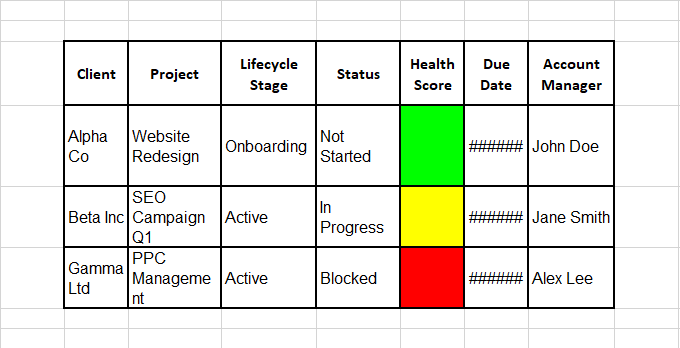
Of course, you can switch this up, depending on your needs. We’ll get into some helpful templates in a bit.
Pros:
- It’s free and quick to set up.
- Most team members already know how to use it.
- Integrates seamlessly within the Google ecosystem.
- Great for basic project tracking; works fine for <10 clients.
Cons:
- Manual updates are a time suck.
- Because it lacks advanced functionality, it’s not ideal for large projects.
- No built-in reminders and limited scope for automation.
- Although collaboration is possible, it gets messy if multiple people edit at once.
Practical tip: If you’re running monthly reports, add formulas that auto-calculate report deadlines (e.g., first Monday of every month). This saves account managers from manually tracking reporting cycles.
Smartsheet
Smartsheet feels like Excel, but with smarter features. It’s built for teams that need structure but don’t want the heavy lift of full project management software.
For example, Formula 1 team McLaren Racing relies on Smartsheet to streamline marketing operations, event coordination, and digital asset management during race weekends, demonstrating its scalability in fast-paced, deadline-driven environments.
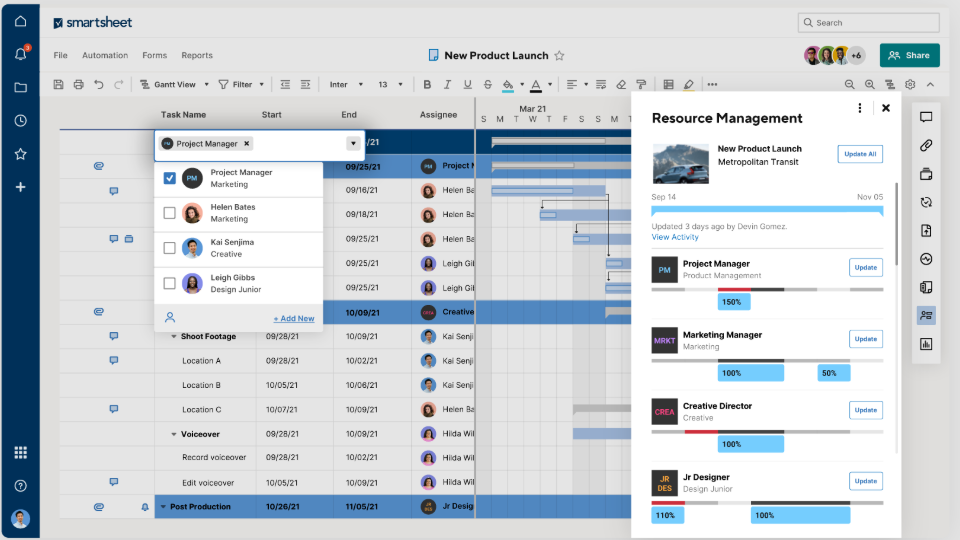
How to create a project tracker:
- Sign up and choose a Project Tracking template.
- Add dropdown fields for Status and Lifecycle Stage.
- Enable automated alerts for approaching due dates.
- Use Gantt charts to visualize timelines and dependencies.
Pros:
- Easier transition for spreadsheet lovers.
- Built-in automations like setting reminders and updating task statuses.
- Collaboration-friendly: multiple users can update in real time.
- Very customizable, allows users to create dashboards and reports, and set up automated workflows.
Cons:
- Costs can add up (starting around $7 per user/month).
- Advanced features are considered add-ons and come with additional costs.
- Still limited compared to a true database like Airtable.
- Some users may find it overwhelming to deal with; appropriate training may be required when transitioning
Automated reminders can reduce missed deadlines by 40% because project leads can be pinged three days before every milestone.
Airtable
Airtable takes tracking to another level. It’s a database disguised as a spreadsheet. That means you can link tables, create views, and automate workflows in a way that traditional sheets can’t handle.
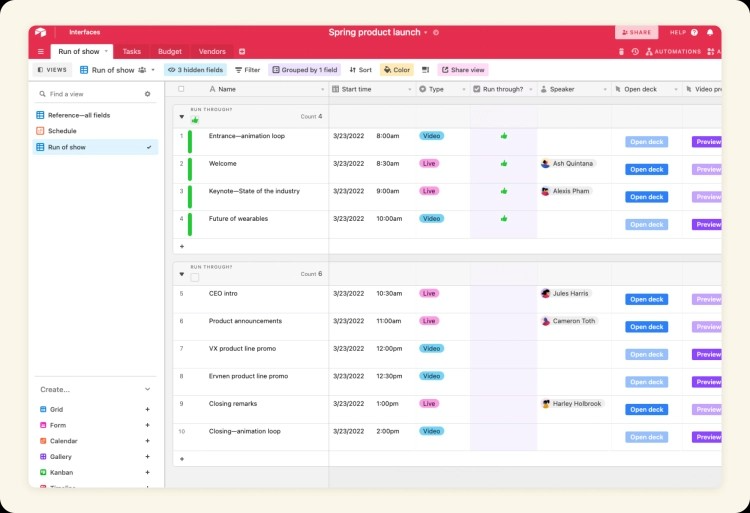
How to set it up:
- Create a new “base.”
- Add a Clients table and a Projects table. Link them.
- Create different views:
- Kanban view for task progress.
- Gantt view for timelines.
- Calendar view for due dates.
- Add automation: for example, send an email when a project status changes to Blocked.
Pros:
- Extremely flexible.
- Multiple views make it easy to tailor dashboards for executives vs. delivery teams.
- Great for agencies with 20+ active clients.
- Collaboration features with different permission layers.
Cons:
- A steeper learning curve and the flexibility may lead to “over-customization”.
- Can overwhelm small teams if rolled out too soon.
- Lower-tier plans have record limits and syncing issues
Pro Tip: Start with one department, like SEO, before rolling out to the entire agency. That way, you troubleshoot the setup before scaling.
Choosing the Right Platform
There’s no universal winner. For under five clients, Google Sheets works fine. Between 10–20, Smartsheet offers structure without overkill. Once you hit 20+ active clients, Airtable becomes worth the effort.
Think about the cost as well. An Airtable Pro plan is $20 per user/month. For a five-person team, that’s $1,200 annually. But if that saves you even 50 hours of wasted back-and-forth each year, the ROI is clear.
Project Tracker Templates and Best Practices
Building a tracker from scratch can feel overwhelming, especially when every agency already uses endless spreadsheets, email threads, and Slack channels. Templates save you from starting with a blank page and give your team a proven structure to manage clients efficiently.
Kanban Boards
Kanban boards give you a visual pipeline. Each column represents a stage: Not Started, In Progress, Blocked, Completed. Agencies often use this for campaign deliverables.
Example: a social media agency maps each client’s posts through design, approval, and publishing. Tools like Trello, Airtable, and Notion provide free Kanban templates.
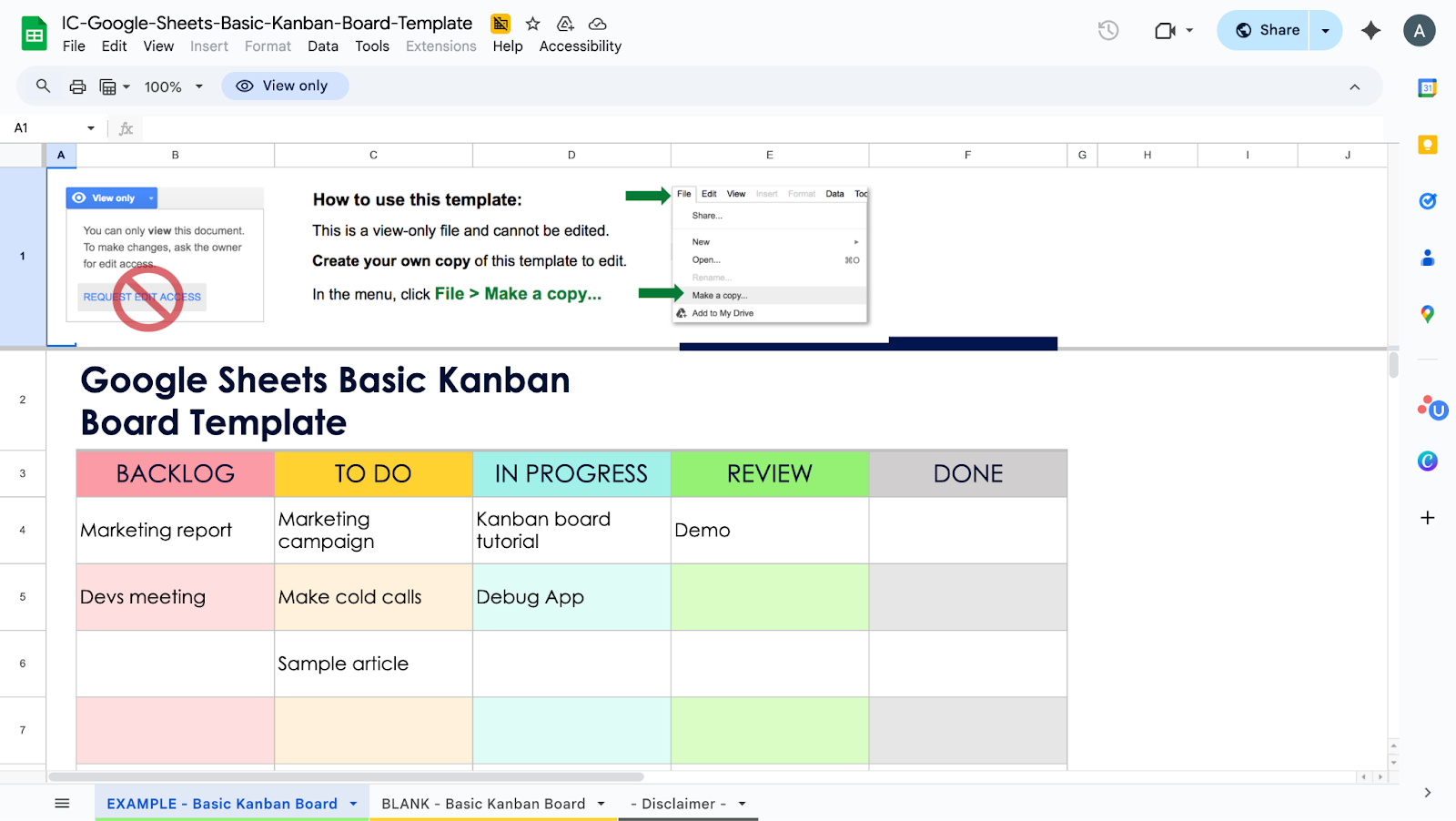
Link to the Template
Gantt Charts
Gantt charts are essential for projects with deadlines and dependencies. If you’re redesigning a website, you can see how wireframing delays affect content uploads and launch dates.
Smartsheet and Excel have built-in Gantt templates. A lot of project managers rely on Gantt views when managing multi-phase projects because they provide clarity on overlapping timelines.
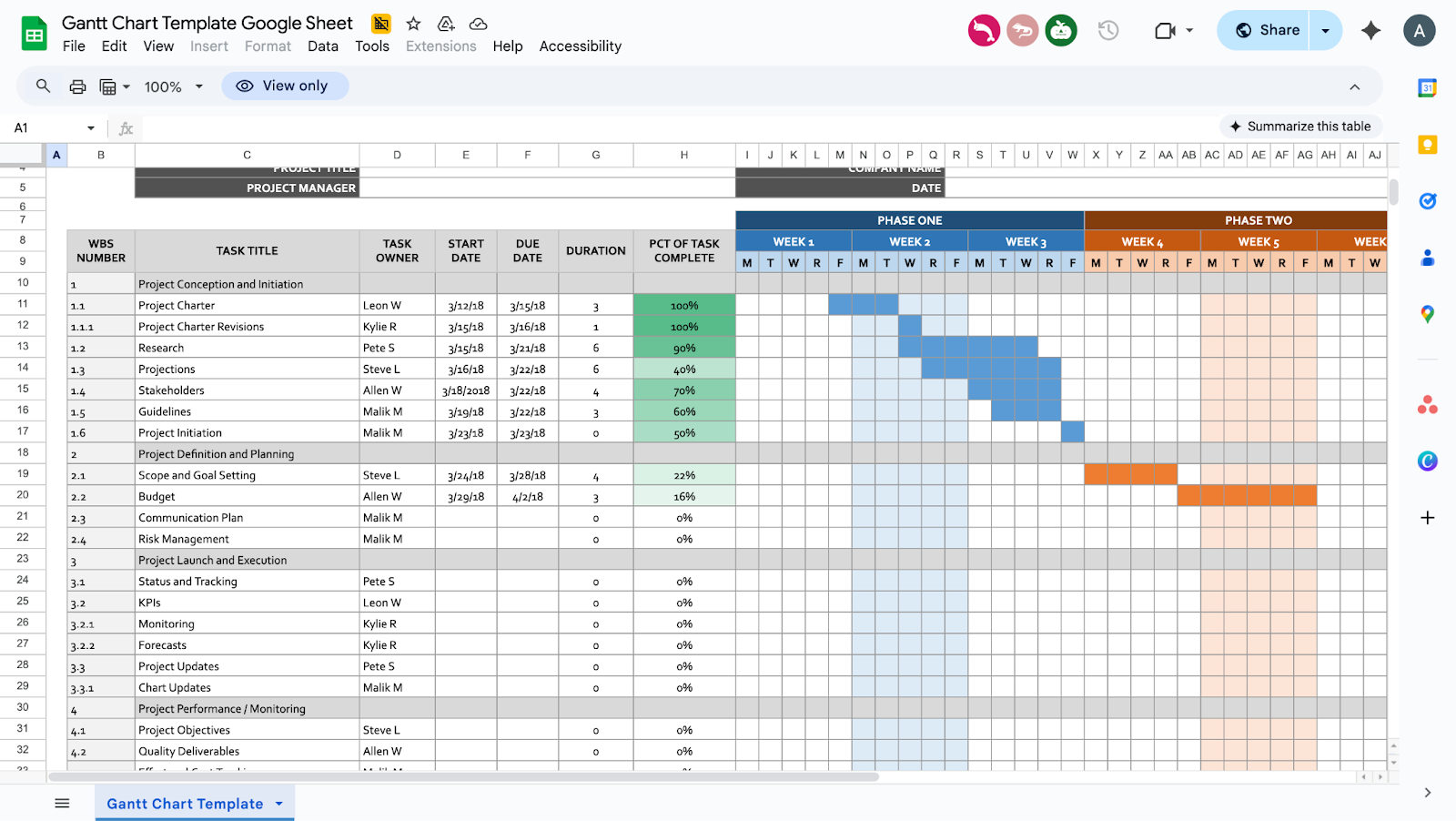
Gantt-style tracker Template 1
Project Roadmaps
Roadmaps are higher-level. They outline quarterly or yearly goals. For example, an SEO agency might map Q1 to audits, Q2 to link-building, and Q3 to performance reporting. These roadmaps keep both clients and managers aligned on priorities. Notion and Airtable include roadmap templates that agencies repurpose for client presentations.
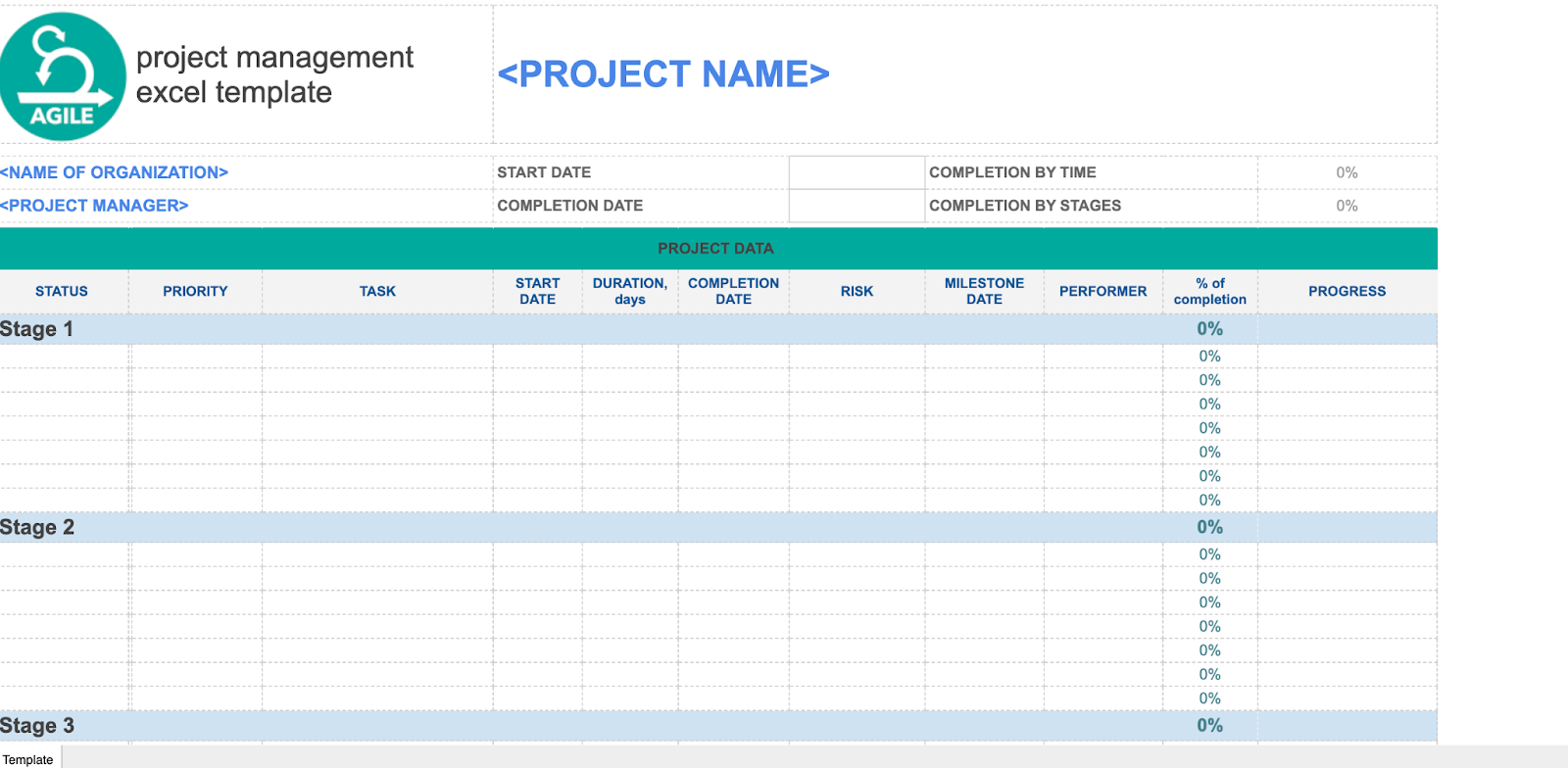
Link to Template
Notion Databases
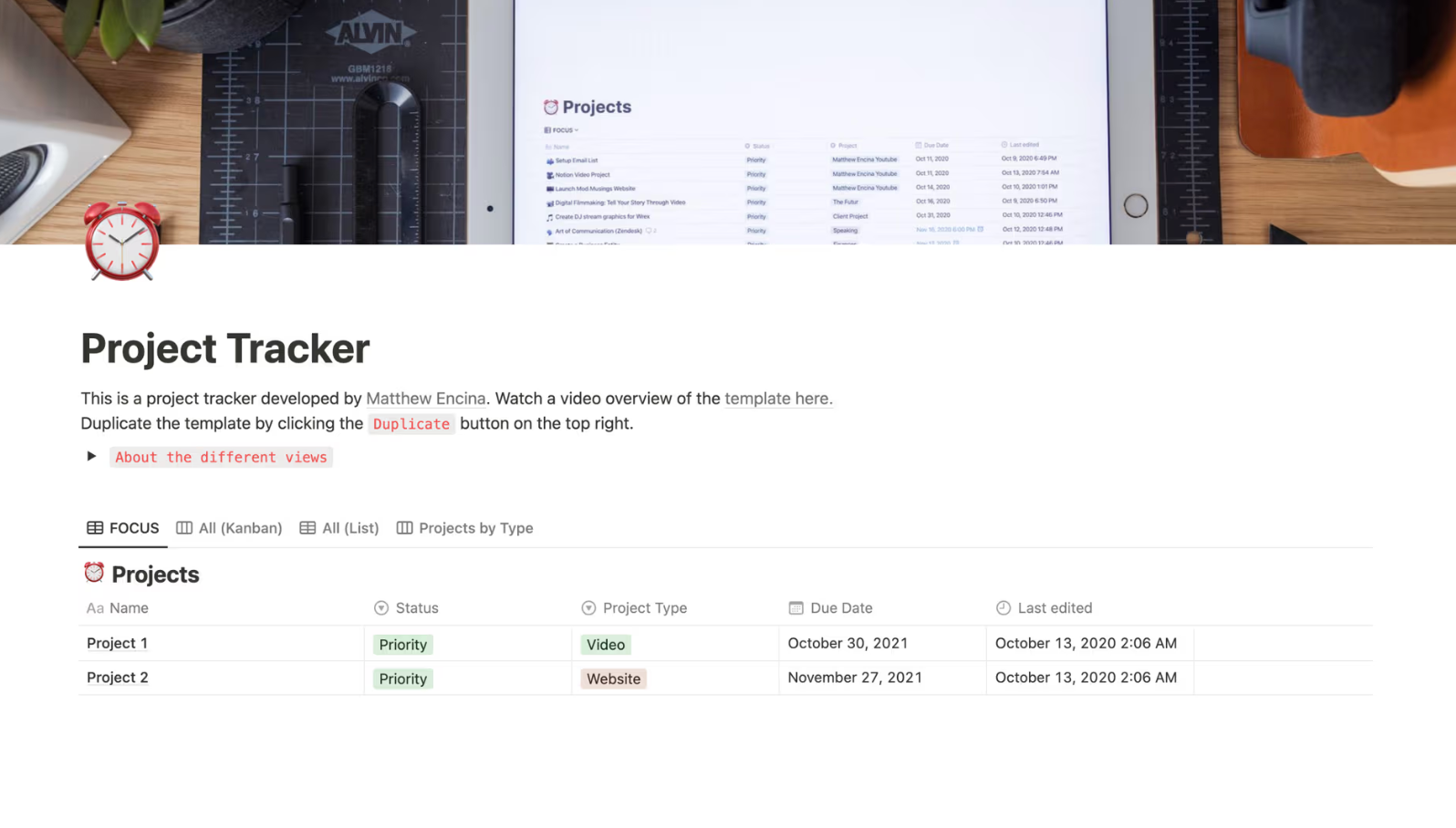
Notion has strong community-built project tracker templates. They combine tasks, client notes, and goals in one workspace. For instance, PR agencies use Notion templates to track pitches sent, responses received, and follow-up dates. Unlike spreadsheets, Notion allows relational databases, so one “Clients” table can link directly to multiple “Projects.”
Link to Template
However, remember that templates are not shortcuts to laziness but frameworks that stop teams from reinventing the wheel. Instead of building a structure from scratch, you tweak it and focus energy on execution.
Best Practices on Creating a Project Tracker
- Weekly or Bi-weekly Check-ins: Consistency matters. Without it, your trackers collect dust. Block time every Friday or Monday for account managers to update statuses, health scores, and due dates.
- Log Major Account Changes Immediately: If budgets shift, campaign goals change, or a new stakeholder joins, log it that day. A survey by PMI found 47% of project failures are linked to poor requirements management. A habit of logging changes in the tracker keeps everyone aligned and prevents misunderstandings.
- Regularly Review Dashboards for Patterns: Dashboards are not just for monitoring. They reveal systemic issues. Example: if five clients consistently get “Blocked” at creative approval, the issue may be your approval workflow, not the individual projects. Agencies that use dashboards as diagnostic tools identify bottlenecks faster and prevent repeat mistakes.
- Coaching Tool for Managers: Use the tracker to coach junior account managers. If a team member’s clients often slip to Yellow or Red health scores, sit down with them to review handoff quality, client communication, or deadline management. Agencies that use trackers as coaching tools reduce churn because managers improve before issues escalate.
Project trackers save time. Centralized trackers give that time back, translating into billable hours or strategy instead of admin work.
The All-in-One Solution: Synup’s Agency Operating System (OS)
Even with templates, most agencies still end up hitting a ceiling. Spreadsheets and Notion boards work for five clients, but as you scale to twenty or fifty, things start breaking. Teams duplicate work, data lives in silos, and miscommunication creeps in. That’s when you need an integrated system built for scale.
Why Spreadsheets Fall Short
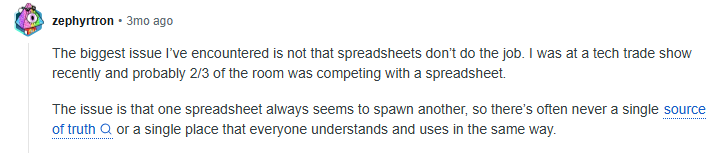
Spreadsheets, even with templates, eventually create silos. A Google Sheet for tasks, a Notion page for notes, and Slack for updates mean context is split across tools. When data is fragmented, agencies lose visibility. Just ask any business executive: siloed information slows decision-making and execution. Here’s an insight, tying back to what we mentioned about a “single source of truth”:
That’s why agencies with growth ambitions need integrated systems. They reduce context-switching, centralize updates, and keep every project tied to measurable client outcomes.
How Synup Agency OS Helps
The Synup Agency Operating System (OS) was built specifically for agencies. Instead of bouncing between five apps, teams manage everything in one platform.
Centralized Tasks and Activities
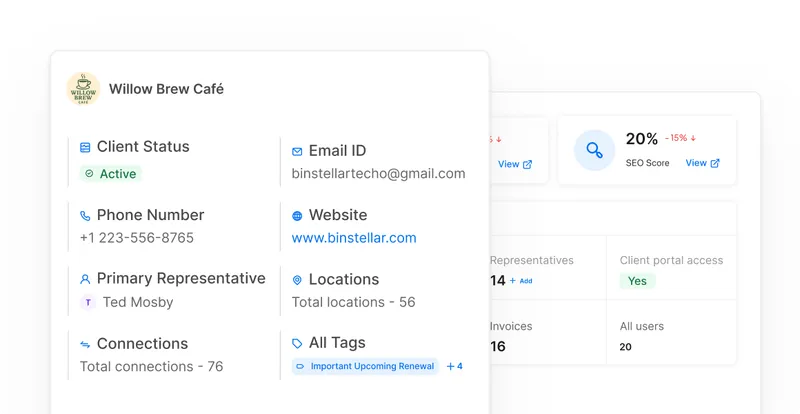
Every task, meeting note, and email lives in the OS. Example: if you’re managing 12 clients, you no longer search Gmail for that one email thread about Q2 reporting. It’s already logged against the client profile with tasks attached.
Real-Time Collaboration
Teams assign tasks, comment, and update statuses inside the platform. If a project is marked “Blocked,” account managers see it instantly. That prevents delays where no one owns the next step.
Integrated Workflow
The OS syncs with your calendar and mailbox. Say you log “Prepare Q3 SEO Report by June 15.” The system links the deadline to your calendar invite and relevant email thread. That reduces duplicate work and keeps context attached to every task.
Built-in Client Portal
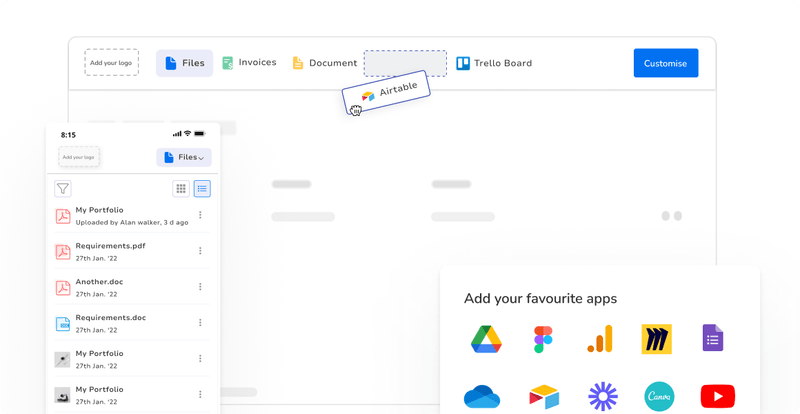
Clients get their own portal. They can log in to see live project status, recent deliverables, and upcoming deadlines. This reduces the volume of “status update” emails while boosting transparency. Agencies that share transparent dashboards often see improved client retention because trust is reinforced visually.
Churn Forecasting
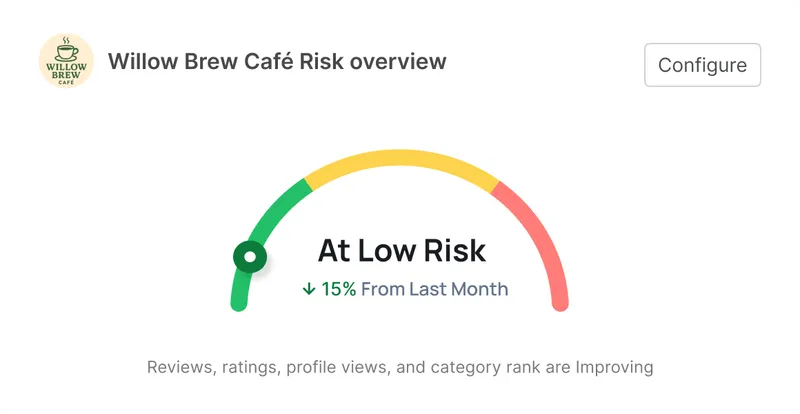
The OS tracks client health across all projects. If engagement drops, deadlines slip, or updates stagnate, it flags the account as at risk. For agencies, this is critical. Retention is cheaper than acquisition. Synup OS provides that early-warning forecasting system for client churn.
Disconnected tools can still work for five clients. At 50 clients, they break down. Synup OS eliminates silos and gives agencies one hub for projects, clients, and outcomes.
Also Read: 7 Fixes You Can Implement to Reduce Client Churn for Your Agency
Conclusion & Next Steps
A client project tracker is the difference between firefighting and running a professional agency. Start with trackers like a spreadsheet or Smartsheet and templates like Kanban boards, Gantt charts, or Notion databases. Layer in best practices like weekly updates and dashboard reviews. As you scale, move into an all-in-one solution like Synup’s Agency OS to eliminate silos and forecast churn risk.
The next step is simple: pick a template today, build habits tomorrow, and upgrade when growth demands it.
Frequently Asked Questions
- What are the 5 C’s of project management?
The 5 C’s of project management are Complexity, Criticality, Compliance, Culture, and Compassion. They act as guardrails. Complexity determines how detailed your plan should be. Criticality defines risk tolerance. Compliance ensures alignment with policies. Culture affects team dynamics. Compassion reminds you that projects involve people, not just tasks.
How to build a project tracker in Excel?
Open a blank workbook. Add columns for project name, task, owner, start date, due date, and status. Use conditional formatting to color-code statuses. Add formulas to track completion percentages. For dependencies, insert Gantt chart templates available inside Excel. Agencies often use Excel for quick-start tracking before moving to larger systems.
How do I start using a project tracker?
First, set measurable objectives. Second, draft a project plan with deadlines and responsibilities. Third, decide where updates will live: tracker, meetings, or both. Fourth, set up the tracker and log every task. Finally, keep it alive with weekly updates. A tracker is only as valuable as its upkeep.