How to Merge Google Business Profiles (And When Not To)?
Learn how to merge duplicate Google Business Profiles to consolidate reviews, eliminate split data, & boost SEO.
Duplicate listings creep into an agency’s workflow in a way that may not be obvious at first. Yet, almost half of businesses have had to deal with them. They create inconsistent data, split up valuable customer reviews, and waste management time you could be billing for.
If you’re running a bill-per-location local SEO package for a client with 20 locations, dealing with a dozen phantom profiles across that portfolio is pure profit drain. It’s operational friction you can’t afford.
This guide provides a definitive strategy on how to merge Google Business Profiles (GBPs) when they’re legitimate duplicates. We're going to break down the exact steps and protect your clients’ presence.
TL;DR: How to Merge Google Business Profiles
- The Golden Rule for Merging: You can only merge two GBPs if they are true duplicates of the same business at the same physical location.
- Merger Misconceptions: Merging is not for combining two separate businesses (even post-acquisition) or for moving reviews between different physical locations.
- Merging vs. Moving vs. Deleting:
- Merging is for same-address duplicates; reviews combine.
- Moving (Relocation) is updating the address on the existing profile when the business moves.
- Deleting is removing a permanently closed or incorrect profile with no reviews to save.
- When to Merge: The three justified scenarios are Accidental Duplication (manager created a second listing), Google Auto-Generated Listing (phantom profile), and Old, Unclaimed Profile (with valuable reviews).
- When NOT to Merge (Policy Traps):
- Two Separate Locations/Businesses: Never merge a profile from an acquired business into an existing branch if the addresses are different.
- Moving a Business: Don't create a new listing and try to merge the old one; update the existing address instead.
- Different Departments: Do not merge profiles for separate departments (e.g., "Gift Shop" and "Main Office") even if they share an address.
- The Permanent Warning: If Google incorrectly merges two distinct businesses, there is no automatic undo button. Proceed with caution and audit.
- The 7-Step Protocol:
- Access: Ensure you have Owner/Manager access to all profiles.
- Consistency: Audit and ensure NAP, Category, and URL are 100% identical on the duplicate profile.
- Identify Survivor: Choose the profile with the most authority/reviews to keep.
- Locate IDs: Find the unique Business Profile ID for all listings involved.
- Contact Support: Initiate the request via the official Google Business Profile Help Center.
- Submit Request: Provide the IDs and clearly state the Survivor and Duplicate profiles.
- Monitor & Check: Wait 3–10 business days, then verify reviews/data transferred successfully.
Can You Merge Two Google Business Profiles?
Yes, you can absolutely merge Google Business Profile listings, but only under one very specific condition.
They must be legitimate duplicates of the exact same business at the exact same physical location. That's the golden rule, and Google will enforce it while you're trying to fix your duplicate Google business profile listings
The Merger Misconception
Don’t fall into the common trap of thinking "merging" means combining two separate, functioning businesses. It doesn't. If you do, Google might suspend your business profile.
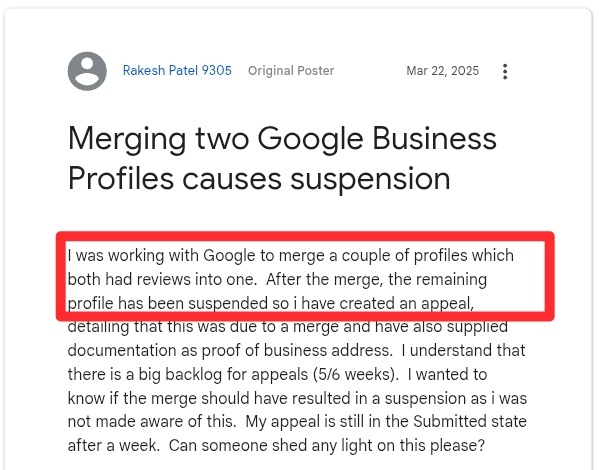
You cannot, for example, successfully merge two different pizza shops just because they recently joined forces under one owner.
Google sees two distinct entities, two different histories, and two sets of unique customer signals. Trying to force that merge will just lead to policy violations and wasted time dealing with Google Support.
Equally important, merging is not a tool for moving reviews from an old location to a new one. Reviews are tied to the physical address.
Google’s Policy on Duplicates
Google’s stance is firm: "Multiple profiles for the same business may mislead your customers and are against our policies." (That's according to the Google Business Profile Help Centre).
This is the core policy you need to cite when you reach out to support. The entire function of a merge is to clean up Google’s database, not to artificially combine business histories.
If a client is suffering from multiple phantom listings, you need to be prepared to identify and fix common Google Business Profile issues beyond just merging. This includes tackling everything from ownership conflicts to category spam.
Merging vs. Moving vs. Deleting a GBP Listing: What’s the Difference?
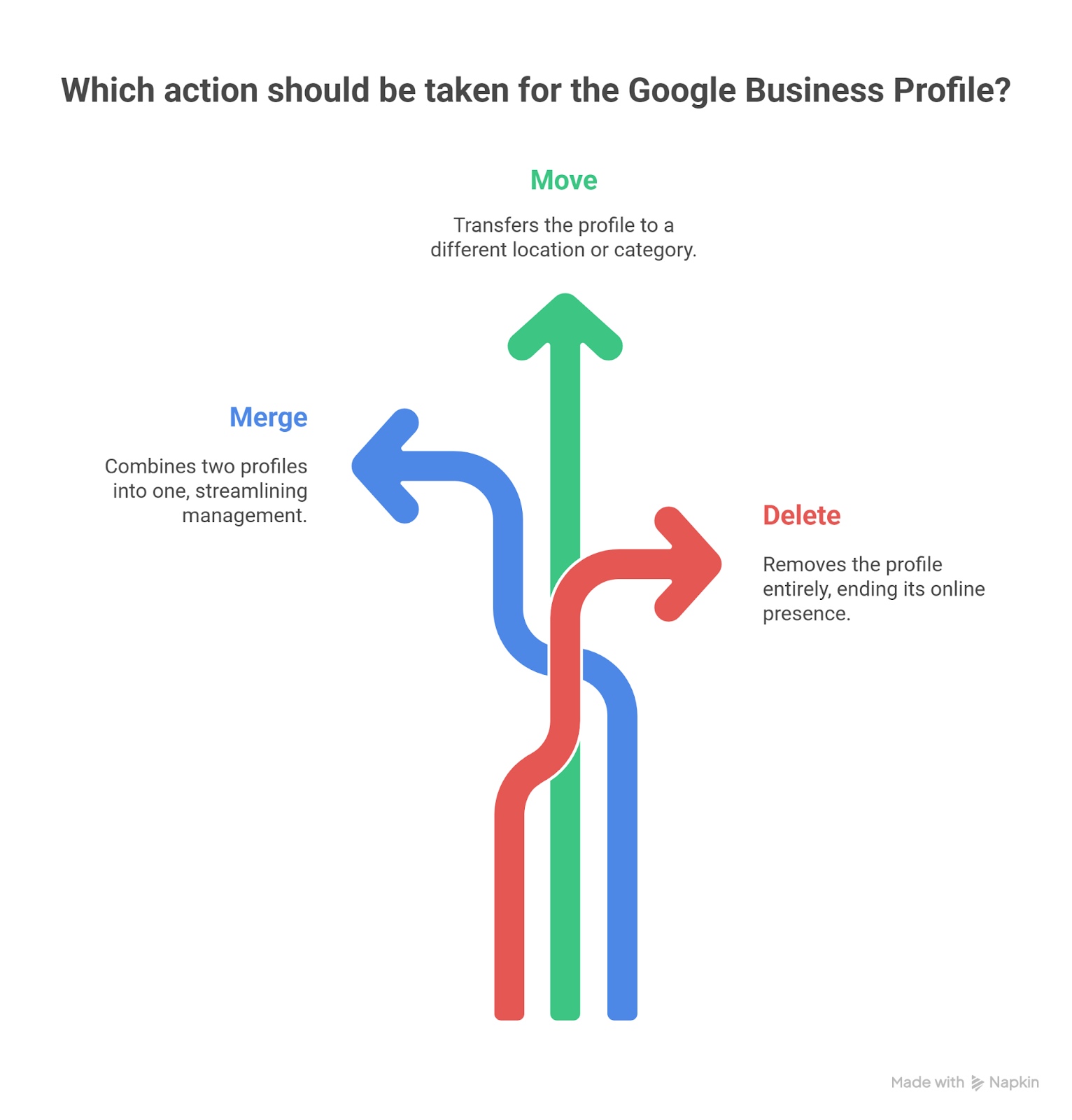
When you’re talking to clients or training your new local SEO specialist, the language matters. These three actions are distinct and have different outcomes on reviews and visibility.
Merging
This is the nuclear option for duplicates. Merging means combining two or more claimed listings for the same entity into one surviving profile.
Here's a scenario when you’d need this:
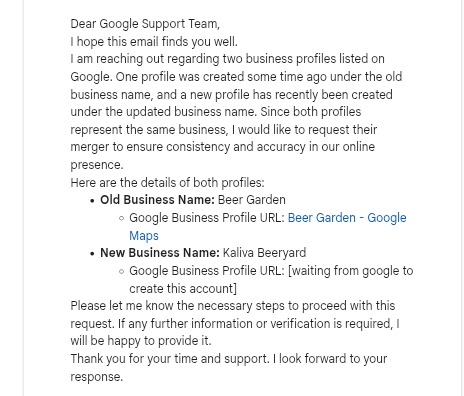
The owner is looking to merge two Google Business Profiles that represent the same shop.
The key outcome here is that the reviews from the deleted profile are typically combined into the surviving one.
Moving (Relocation)
If your client, say, "Cornerstone Coffee," moves their shop from 100 Main Street to 200 Main Street, you don’t merge. You simply update the address on the existing GBP listing.
The reviews remain with the listing, but Google will naturally suppress and eventually deprecate the old location's search visibility over time. It maintains the integrity of the business's history.
Deleting/Marking Closed
This applies to locations that are permanently shut down or to profiles that were created incorrectly and never received reviews (so there's nothing to save). It removes the profile from search and Maps.
The Technical Request
The act of merging is a high-level technical request that you submit to Google Support. You can't merge it yourself. It’s not a button in the GBP interface.
This is why you need to secure the Business Profile ID for all listings involved. This ID is Google’s unique identifier for the listing, and you cannot submit a merge request without it.
When Should You Merge Google Business Profiles?
As an agency, you should view merging as a tool to consolidate SEO power and simplify your workflow. Here are the three most common, justifiable scenarios for a merge:
- Accidental Duplication
This happens all the time. A new store manager, trying to be helpful, creates a second GBP listing for a location that already has a verified profile.
Or, your agency took over and, in the flurry of onboarding, accidentally claimed and verified a listing that was already under another account.
The result: two verified, active listings for the same business at the same address. This is a clean-cut case where you should merge the Google Business Profiles.
- Google Auto-Generated Listing
Google's algorithms sometimes scrape data from public records, directories, or Maps suggestions and automatically generate a "phantom" profile.
This ghost listing conflicts with your verified profile and often has inconsistent hours or a slightly wrong phone number. It’s not claimed, but it’s actively confusing customers.
Merging the phantom into the verified profile removes the confusion and stops the data bleed.
- Old, Unclaimed Profile
You find an old listing that was never claimed, perhaps under a slightly different name or business category, but it has 15 great, old reviews.
This profile is an SEO asset waiting to be unlocked. Merging this old, unclaimed version into your verified, current profile is essential.
If your client has 100 reviews on the main profile and 40 on the duplicate, you just instantly boosted their review count by 40%.
Critical Fact: Be warned: while the reviews move, replies to those reviews on the deleted profile may be lost.
When Should You NOT Merge Business Profiles
In an agency, your biggest job is risk reduction. Knowing when to stop and walk away from a merge request is just as important as knowing how to execute one. Trying to merge in these scenarios is a guaranteed policy violation.
- Two Separate Businesses/Locations
You have a client named Elite Roofing, which is a provider of home services. Elite Roofing acquires "Southwest Roofing" at a different address.
Your client asks you to merge the two Google business profiles to consolidate all the positive reviews from both into the new, single company profile. You cannot do this!
Policy Violation: These are two distinct locations and business histories. Even though they are now one company, the listings cannot be merged.
Strategic Solution: Keep the listing with the highest authority and the most positive reviews (let’s say Elite Roofing). Rebrand that listing with the new company name, and then mark the Southwest Roofing listing as Permanently Closed within the GBP dashboard. This preserves the best profile's authority while cleanly retiring the other.
- Moving a Business Location
This is a classic rookie mistake. Your "Downtown Dentist" client moves one block over. Your team creates a new listing at the new address, thinking it'll be faster. Then, they try to merge the old one into the new one to save the reviews. Do not attempt this.
Policy Violation: A merge is for the same address duplicates. If the address differs, you must update the address on the existing authoritative listing. If you create a new one, you throw away all the profile's age and trust.
- Different Legal Entities/Departments Sharing a Spot
Consider a large, multi-faceted client, such as an Assisted Living Center. They have "The Haven Assisted Living" (the main entity) and "The Haven Gift Shop" (a separate retail function). Even if they share the main building's address, they are often considered distinct entities.
Rule: They should not be merged if they qualify for separate listings per Google guidelines. Merging distinct departments just because they share a main address is a policy violation and eliminates valuable search paths.
The Permanent Warning
This is the big one: If Google incorrectly merges two distinct profiles that should have remained separate (it happens, trust us), there is no way to automatically undo the merge.
The data is gone forever.
This is why your initial audit and clear communication with Google Support are paramount. You are gambling with your client’s core SEO asset.
How to Merge Google Business Profiles
Executing a successful merge requires precision and the right documentation. Treat this like an official legal filing.
Prerequisite: Access is Everything
You must have Owner or Manager access to all profiles involved: both the survivor and the duplicate(s). If you don't own them, you need your client to grant access or submit the request on your behalf.
Part 1: Finding Duplicate Listings
Search for the Listings
Search for your business name, address, and phone number on Google Search and Google Maps, using variations like abbreviations or former names. This helps spot entries that Google's automatic systems might miss.

Log in to your Google Business Profile Manager to look for any alerts or notifications regarding potential duplicate locations that Google has flagged.
Before you even touch the support form, you must make the duplicate look exactly like the survivor.
- Ensure the NAP (Name, Address, Phone), Category, and Website URL are 100% identical on both the surviving and duplicate listings. Discrepancies here are instant grounds for denial.
- Pro Tip: This is one of the benefits of using a top Google business profile management tool. You can instantly check and enforce consistency across all your clients’ locations before the merge request.
Identify the Surviving Profile
Determine which profile will remain. It should almost always be the one with the highest count of quality reviews, the oldest listing age, and the most accurate core data. This is the profile that will inherit the authority.
Locate the Business Profile IDs
You need the unique identifier for both the survivor and the duplicate. This is non-negotiable for the merge request.
- Sign in to the GBP Manager interface.
- Select the Profile you need the ID for.
- Click the Business Profile Settings (usually a three-dot menu on desktop or a prominent settings icon).
- Go to Advanced Settings.
- The Profile ID will be displayed there. Copy both the survivor and the duplicate ID.
Part 2: Merging Duplicate Listings
Once again, before attempting a merge, ensure both listings represent the exact same business at the same location and that you have ownership/management access to both profiles.
If the addresses don't match, they cannot be merged, and the incorrect one should be marked as permanently closed or moved.
Option 1: Suggest an Edit on Google Maps (For unowned or minor duplicates)
If you find a duplicate you don't own, or if the process above fails, you can report it on Google Maps.
Step 1: Locate Duplicate
Find the duplicate listing on Google Maps.
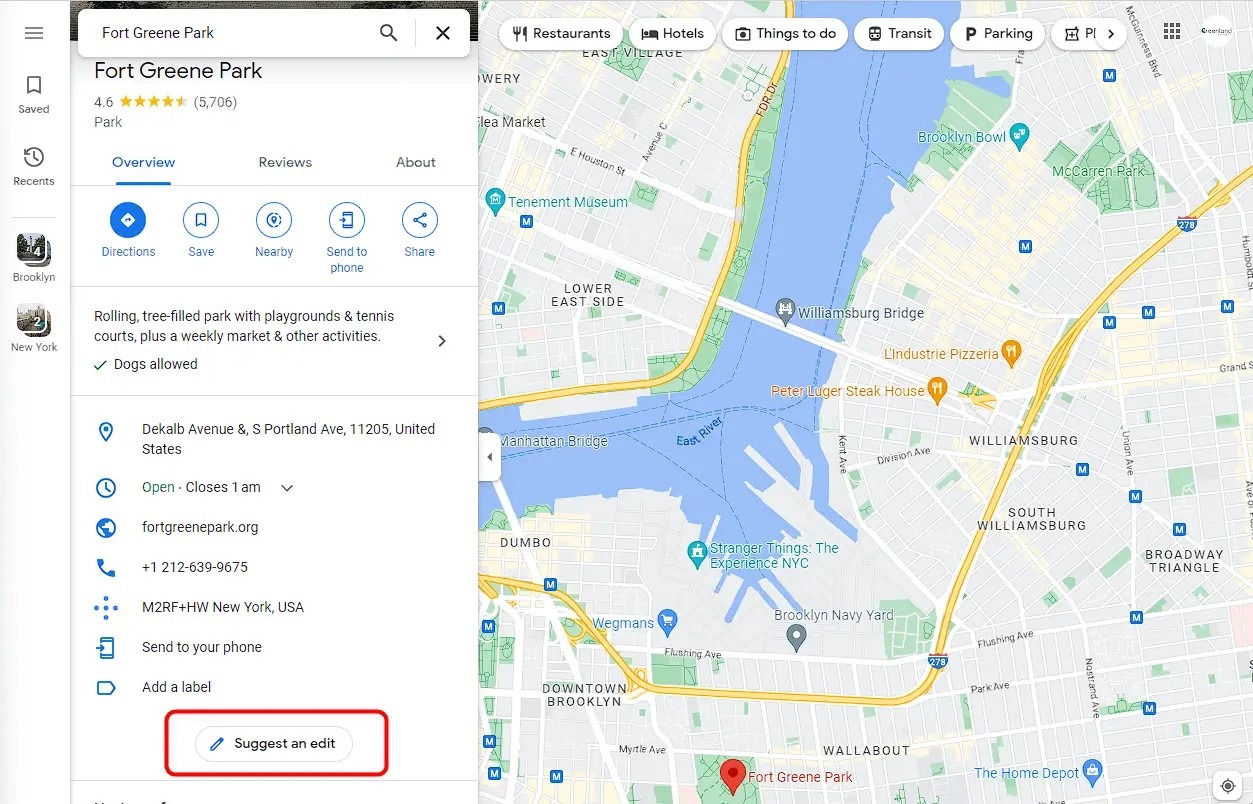
Step 2: Suggest an Edit
Click on the "Suggest an edit" button.
Step 3: Mark as Duplicate
Select the "Close or remove" option (or "Place is permanently closed or doesn't exist") and then choose "Duplicate of another place".
Step 4: Submit
Select your primary business listing to which the duplicate should be merged and submit the report.
After the merge is complete, check your primary profile to ensure all information and reviews have been transferred correctly.
Option 2: Contact Google Support (Recommended for owned listings with reviews)
This method is best for ensuring that data, such as reviews, are preserved.
Step 1: Gather Information
Collect the Google Maps URLs and, if possible, the unique Business Profile IDs for both the primary (one you want to keep) and duplicate listings. (To find the ID: In the Business Profile Manager, click the three-dot menu > Business Profile settings > Advanced settings).
Step 2: Contact Support
Visit the Google Business Profile Help Center and use the "Contact Us" feature.
Step 3: Submit Merge Request
Follow the prompts, selecting options related to "manage my listing" and "duplicate listings". Clearly explain the issue in the form, provide the URLs and IDs, and specify which profile is the primary one.
Step 4: Verify Ownership
Google may require you to verify ownership of both profiles during the process.
Step 5: Monitor and Await Confirmation
Merges are not instantaneous. Google Support reviews them manually. A simple Google Business Profile merge request typically takes 3 to 10 business days.
Sometimes, if the profiles have complex histories, it can take longer. Make sure to set a reminder on your team's project management board to follow up.
Step 6: Post-Merge Check
Once the merge is confirmed, immediately verify the surviving profile:
- Do the reviews, photos, and Q&A from the duplicate profile now appear on the survivor?
- Search for the duplicate’s old name and address. It should no longer appear on Maps or Search.
Google Business Listings for Professionals/Practitioners
Here is one specific merge scenario that will trip up almost every multi-location health or legal agency.
The rule, as highlighted by expert local SEO agencies, is simple: Google will generally not merge a practitioner listing (e.g., "Dr. Emily Smith") with the main practice listing (e.g., "City Dental Clinic") unless that individual is the only practitioner at that physical location.
Here's the logic behind that…
Google wants the individual practitioner to be searchable under their own name. If Dr. Smith is one of five doctors at the clinic, merging her profile into the clinic's profile removes her individual search visibility.
It essentially prevents a customer from searching "Dr. Emily Smith" and finding her location. This is against Google’s goal of providing the most useful and specific search results possible. Don't try to fight it. Manage the two profiles separately, ensuring the practitioner’s profile lists the clinic as the department to which they belong.
Conclusion
Merging is a powerful cleanup tool when used correctly, especially when you need to consolidate reviews, eliminate duplicate clutter, and strengthen local SEO. Just remember the rule: Use the merge function strictly for its intended purpose: consolidating Google Business Profile listings that represent the same business at the same location. Don't use it to bypass policy.
Use a Google business listing management platforms like Synup to maintain data consistency and prevent future duplicates. This is the proactive way to protect your clients' local visibility and your profit margins.
FAQs
- Do I lose reviews when merging GBPs?
No, the reviews from the duplicate profile are combined into the surviving profile. However, you should be aware that the original replies the business posted to those reviews on the deleted profile are often lost, so be sure your reputation management strategy includes a backup of that engagement.
- How long does a GBP merge take?
The process typically takes 3 to 10 business days from the moment you submit all required information to Google Support. Complex cases involving profiles with messy histories or multiple owners may sometimes take longer.
- What if my merge request is denied?
If your request is denied, Google usually provides a brief explanation. Your immediate next step should be to go back and double-check. Ensure that the Name, Address, Phone, and Category for both the survivor and the duplicate are 100% identical. Resubmit the request with the corrections, or if the denial is policy-related (e.g., Google deems them two distinct businesses), consider an alternative fix, like marking the duplicate as permanently closed.