Why Is Google Rejecting My Business Photos & How to Fix It
Stop wasting agency time on rejected google business profile images. Learn the common policy violations, technical specs & best practices to fix photo rejections for your clients.
Photo management sits at the heart of Google Business Profile optimisation. When you handle dozens of locations, uploading photos becomes a daily task. Without visible proof, a business is one step from being dismissed as untrustworthy. Photos are the bridge that carries a hesitant searcher into confident action.
Because they carry so much weight, a single rejected image can stall an entire workflow. Ten rejected images across multiple accounts can derail an entire week of progress.
Rejected photos force teams to stop, decipher vague rejection notices, request replacements, re-upload files, and then wait again for approval.
This guide gives you a clear, scalable playbook. You will learn why your Google Business Photos were rejected, how to prevent these issues, and how to build an internal workflow that keeps every client’s photo compliance on track.
TLDR: Why Is Google Rejecting My Business Photos & How to Fix It
- Google rejects photos for policy violations, low quality, duplicate content, stock imagery, text overlays, poor lighting, or location misrepresentation.
- New listings often block photo uploads for the first two weeks.
- Some photos appear “rejected” but are published after 24 to 48 hours due to indexing delays.
- High-quality photos increase conversions, driving 42% more direction requests and 35% more website visits.
- Enforce specs early: JPG/PNG, 10KB to 5MB, 720×720 minimum, landscape for cover images.
- Avoid watermarks, marketing text, logos, promotional banners, and stock assets.
- Build strict quality rules: bright, clear, recent, location-specific, and shot with modern devices.
- For regulated industries, use a compliance checklist to avoid guideline violations.
- Appeal only after rechecking all specs and policies.
- Use Synup to centralise uploads, enforce compliance, and prevent mass rejection issues.
Why Are Google Business Photos Important?
Photos drive conversions more than any other visual element on a Google Business Profile. For agencies managing local clients, images are a measurable ROI lever.
According to Google’s own research:
- Businesses that display photos on Google Search and Maps are viewed as more trustworthy, leading 90% of people to be more likely to visit them.
- Companies with photos receive 42% more requests for directions from potential customers.
- Adding photos results in 35% more clicks from Google users who want to learn more on the business’s website.
This impact scales across every client you manage.
Let's break down the conversion impact through the lens of user intent:
- Building Trust: Photos of the business interior and exterior are essential trust signals. When users navigate to a business in a crowded area, they look for visual confirmation. Exterior photos reduce friction and increase a user's confidence in physically visiting the location, which is a powerful SEO signal in itself.
- Setting Expectation: With a photo, you’re putting it all out there. A well-crafted photo sets the tone and eliminates uncertainty. For a high-end restaurant client, a great interior shot ensures patrons expect a premium experience. For a quick-service client, it communicates speed and cleanliness.
Here are a couple of opinions we especially like:
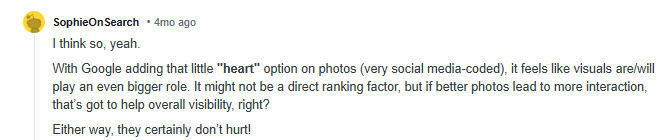
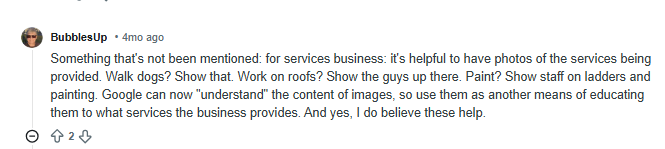
Your agency's ability to consistently upload and maintain policy-compliant imagery is, therefore, directly correlated with client retention and growth.
Also Read: Analytics & Reporting for Google Business Profile
What Are the Specifications for Google Business Profile Photos?
To ensure one-time image approval and optimize your images for Google Business Profile, enforce these specs:
- Format: Must be JPG or PNG. Other formats, including WebP or TIFF, will fail the upload validation.
- Size: The file size must be between 10KB and 5MB. A file size of 6MB will automatically trigger a rejection. Conversely, a tiny 5KB file often indicates low resolution, which Google will reject on quality grounds.
- Resolution: Minimum resolution is 720 pixels wide by 720 pixels high. While 720x720 is the floor, your agency standard should mandate photos at or above 1080x1080 to ensure optimal display quality across all devices.
- Quality: The image must be in focus, well-lit, and represent the reality of the business. Excessive manipulation, extreme filters, or obvious poor lighting will lead to rejection.
Enforcing these specs at submission prevents mass rejections later.
Common Reasons for Google Business Photos Getting Rejected
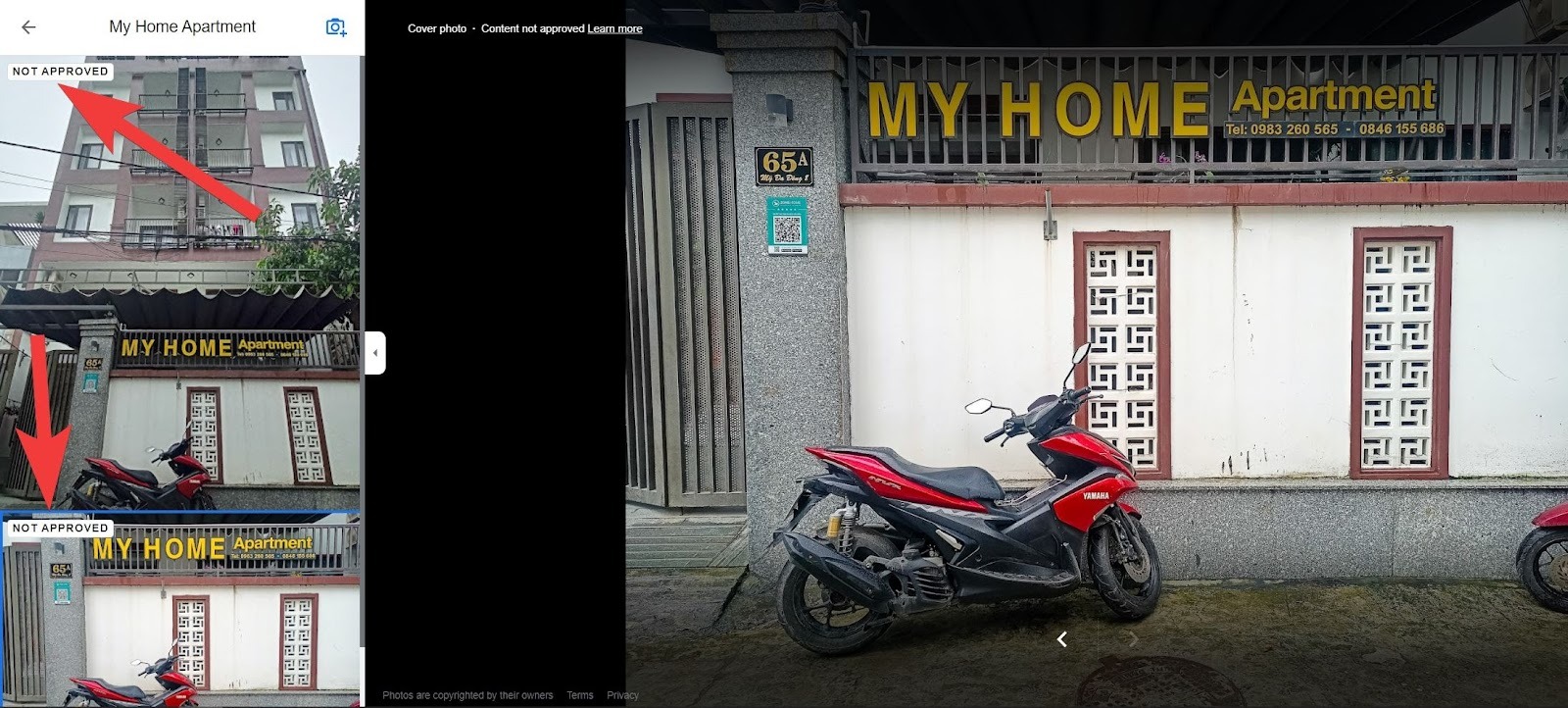
If your client's listing is new (less than two weeks old), Google’s automated system may temporarily restrict image uploads. More broadly, the rejection message is often a catch-all for two major categories: Policy Violations (most common) and Technical/Quality Issues. Sometimes, images that appear "rejected" can sometimes be a bug and will eventually publish after 24–48 hours.
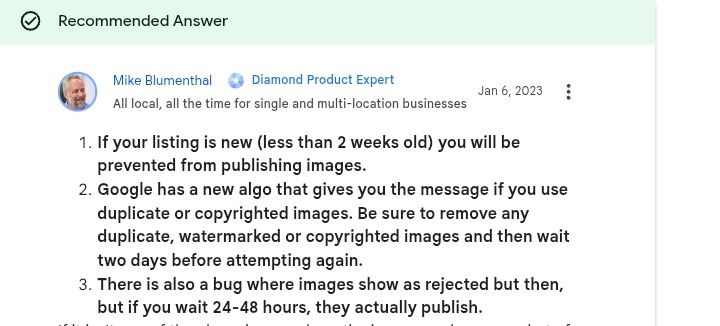
Below is a breakdown of the major causes and how to fix them at scale.
Policy Violation: Text Overlays, Watermarks, and Promotional Content
Google treats the Google Business Profile as a service for users, not a free ad space for businesses. Using the photo section as marketing collateral goes against that principle.
If your marketing team uploads high-resolution branded images with a small logo, a “Visit our website” call to action, a holiday promo overlay, or even a subtle corner watermark for copyright protection, the system will flag it. Any of these elements can trigger an automated rejection.
The Fix: Implement a "zero-overlay" policy across all client assets. Assign a specific team member to use image processing tools to strip all text, logos, and borders from images before upload. The cost of one rejected image (approximately 10–15 minutes of manual re-upload, renaming, and troubleshooting) vastly outweighs the 30 seconds needed to run an image through a clean-up tool.
If you encounter persistent issues, refer to these specific troubleshooting steps: Fixing Common GBP Profile Issues.
Policy Violation: Irrelevant Content & Misrepresentation
Google doesn't generally accept stock photos. It mandates that all photos must be taken at the business location, must be product photos, and must accurately reflect the current state of the establishment. The algorithm can often verify location using geo-tag data embedded in the image file.
Let's say a multi-location client needs 100 profile photos ASAP, so an intern uses generic stock photography of smiling customer service representatives or uploads an image of a beautiful office that doesn't belong to that specific location. That's a quick means to the Google disapproval bin.
The Fix: Implement a mandatory "Proof of Location" requirement for every photo. If the image metadata does not contain a geo-tag matching the GBP latitude and longitude, it must be verified manually by a client representative. When managing assets at scale, utilize a centralized google business profile management platform to manage and tag location-specific, original assets, preventing the accidental cross-posting of photos.
Technical Issue: Low Quality, Blurry, or Dark Images
Google prioritizes User Experience (UX). A blurry, dark, or pixelated photo is a poor UX signal and will be rejected. This is especially true for images that are technically too small (e.g., 300x300 pixels) but are stretched to fit the profile's large viewport.
The Fix: Establish a minimum quality standard: "Must be shot in daylight or professionally lit." For long-term quality, establish an ongoing relationship with a local professional photographer for key assets across all client locations.
Policy Violation: Unauthorized Cover Photo Changes
This is the most misunderstood "rejection." Google reserves the right to override the primary cover photo. It bases this on what its algorithm determines will drive the highest search engagement and user clicks. It's often a performance-based swap, not a rejection of the image itself.
Maybe your team carefully selects a high-resolution horizontal brand photo, only to see Google replace it with a user-submitted, slightly blurry exterior photo.
The Fix: Manage client expectations that the cover photo is algorithmically determined. Instead of fighting the system, maximize your chances of success by continuously uploading a diverse set of high-quality, relevant, and horizontal photos (16:9 aspect ratio). This gives the algorithm the best brand-approved selection.
How to Appeal Images Being Rejected
Google experts recommend waiting 24–48 hours. As mentioned earlier, photos sometimes display as “Not Approved” due to indexing delays. They later appear live without intervention.
Once you’ve waited, recheck the image. Confirm that it meets all technical specs and policies. If a violation exists, fix the issue first. Do not appeal a clear violation.
Appeal only when the photo meets all the rules. At that point, use the Google Support Form.
Also Read: How to Remove Unrelated Photos from Google Maps Listing
Conclusion
Rejections are avoidable when your workflow screens assets early. Standardise the specs, enforce location-proof rules, centralise management, and you'll be able to cut Google business profile photo rejections dramatically. A centralized platform like Synup keeps assets compliant before they’re uploaded. You eliminate the need for appeals altogether.
See how Synup local listing management works by booking a demo.
FAQs
- Why are my photos being rejected on Google Business?
Most rejections stem from policy violations. Watermarks, text overlays, stock imagery, generic photos, and irrelevant content top the list. Low-quality photos also trigger rejections, especially when they’re dark, blurry, heavily filtered, or too small.
- Why does my Google Business cover photo keep getting rejected?
Your photo may not be rejected. Google often replaces your choice with an image that performs better. The algorithm prioritises quality, clarity, and engagement. Use high-resolution, landscape-oriented images that match the business type.
- How long does it take for Google to approve uploaded photos?
Approval usually takes 24 to 48 hours. Some cases take up to a week, especially when manual review is triggered. Rejections often arrive quickly, while successful uploads sometimes appear later due to indexing delays.